pretixSCAN (Android)#
The Android version of pretixSCAN is an application that helps you handle the check-in at your events. The primary function of pretixSCAN is to validate tickets, but it also offers many other features, such as:
- searching for participants manually if they do not have their ticket on hand
- printing attendee badges
- quickly viewing attendance statistics
This article tells you how to install pretixSCAN for Android and how to make use of its features.
Prerequisites#
pretixSCAN is intended for use with an event hosted with pretix. That event must not be offline.
You need to have access to a device running Android version 7 or newer. See our Android version support policy for more information.
In order to set up pretixSCAN on your device, you need a QR code or access token generated by the pretix backend. If you do not have access to the pretix backend yourself, then you need to ask someone who does have that access to send you the QR code or access token.
General usage#
This section guides you through the basic usage of pretixSCAN on Android. This includes the following steps:
- installing the app and setting it up
- connecting to the backend
- performing basic entry scanning
- searching for attendee data
- enabling badge printing
This section describes those steps in detail.
Installation and setup#
Note
If you are renting scan smartphones from us, then we have already installed pretixSCAN and pretixPRINT for you on those devices. We have also configured all relevant apps for you unless communicated otherwise. The same is true if you have bought the devices from us and ordered a finished configuration. In either of these cases, you do not have to do any installation, setup, or connecting to the backend. Skip to the section on Entry scanning.
You can install pretixSCAN on your Android device through the Google Play Store like any other app. If your device does not have access to the Google Play Store, you can download the latest version from our pretix Marketplace. On devices manufactured by Sunmi, you can also find the app in the Sunmi App Store.
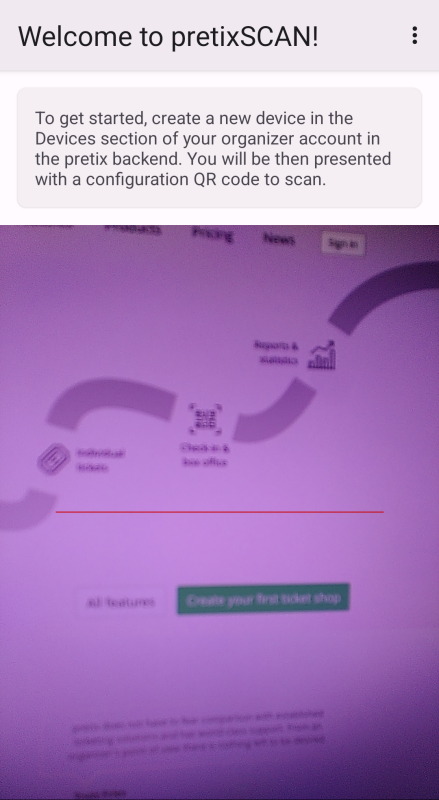
When you launch pretixSCAN for the first time, confirm that you understand the privacy and security implications of storing attendee data on your device. If you want to use the device's integrated camera for validating tickets, then you have to grant pretixSCAN access to the camera. If you have a smartphone with a dedicated scan engine, such as one of our rental scan smartphones, then you do not have to grant pretixSCAN access to the camera. We recommend using the scan engine.
Once you have granted permission, pretixSCAN will start accessing the scan engine or camera instantly. It will also display a text box telling you to create a new device in your organizer account in the pretix backend. The next section is going to tell you how to do that.
Connecting the device to the pretix backend#
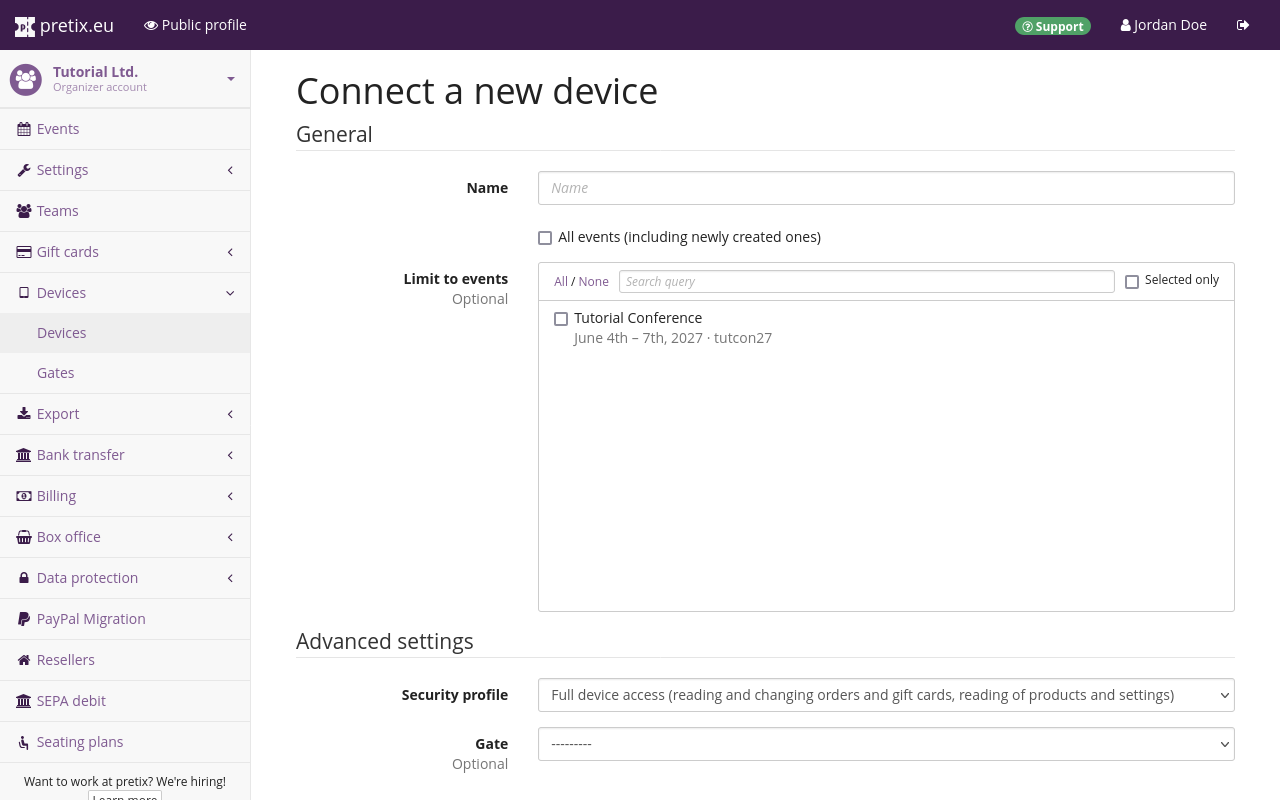
Open the pretix backend and navigate to navigation pathYour organizer then Devices. Click the Connect a device button. Give the device a unique and recognizable name such as "Entrance B phone 1".
If you want to use the device for all your events, check the box next to "All events (including newly created ones)". If you want to use the device for a limited selection of events, do not check that box. Instead, select those events under "Limit to events".
Open the "Security profile" drop-down menu and select one of the options starting with pretixSCAN.
There are three such options:
pretixSCAN: Use this option if you want to use all functions of pretixSCAN.pretixSCAN (online only, no order sync): Use this option if you do not want to store order data on the device. Offline scanning does not work with this security profile.pretixSCAN (kiosk mode, no order sync, no search): Use this option if you want to use Kiosk mode. Offline scanning does not work with this security profile. If you select this security profile before connecting the device, it will enable kiosk mode and disable search. If you switch to this security profile after connecting the device, then you will have to change those settings manually.
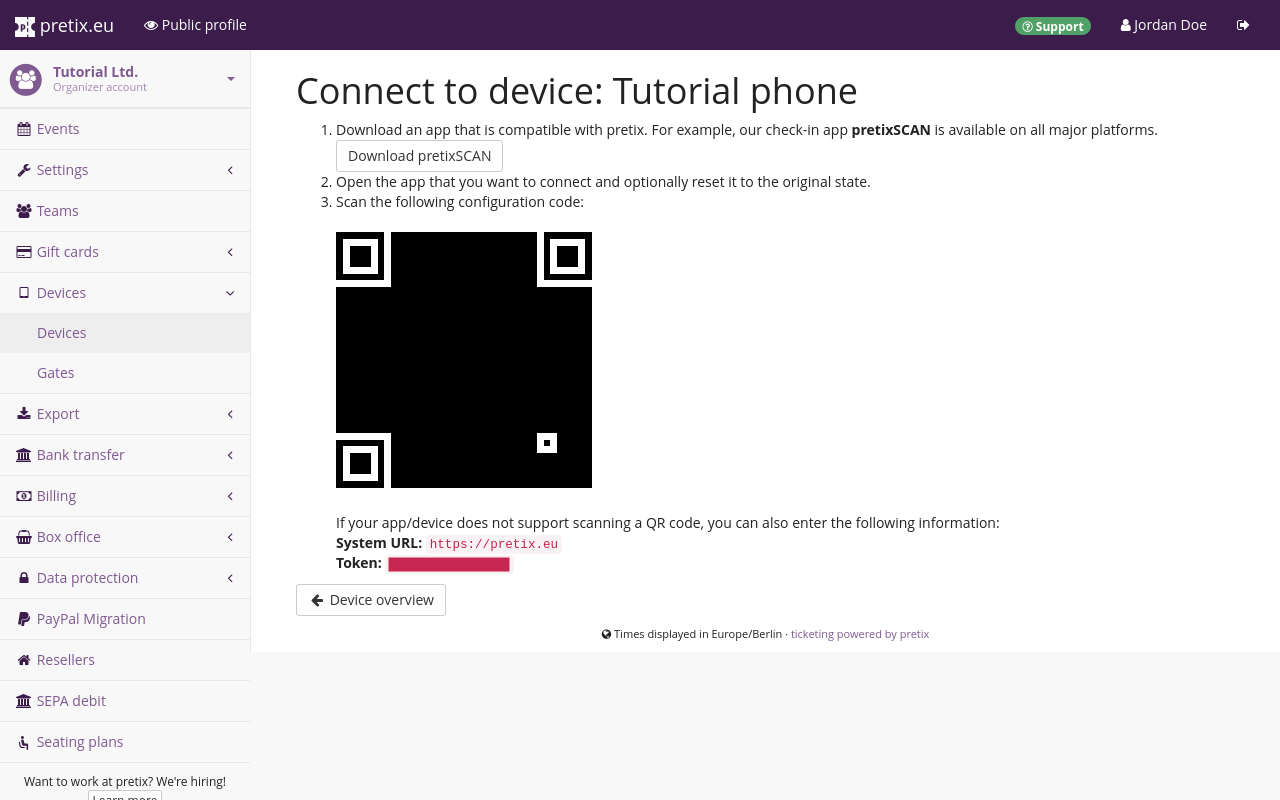
Once you click the Save button, pretix redirects you to a page displaying a QR code. Open pretixSCAN and scan the QR code with the camera or scan engine.
If you cannot scan the QR code, then you can connect the device manually instead. In order to do so, tap the three-dot button in the top right corner of the pretixSCAN app. Then, tap Manual setup. Enter the system URL and token displayed in the pretix backend below the QR code.
If you want to grant authorization to a device belonging to a person who does not have access to the pretix backend, send them the QR code. You can print the code and hand it to them, or send it to a separate device. It makes no sense to send the QR code to the device running pretixSCAN. As an alternative to the QR code, you can send them the system URL and token.
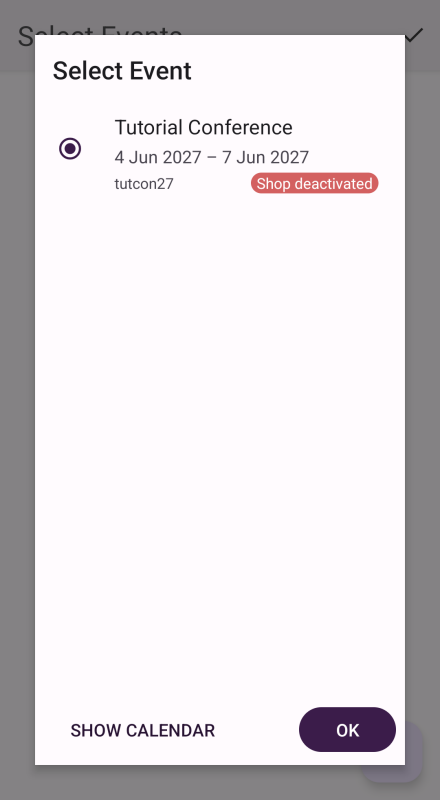
Once you have scanned the QR code or entered the token successfully, the app will ask you to select the event for which you want to scan tickets. It is not possible to select an event that is currently offline. Your next step depends on the type of event for which you want to scan tickets.
-
Single event: Select the event in the list or in the calendar and tap the OK button. Then, select a check-in list and tap the OK button again.
-
Event series: Select one of the dates from that event series. It does not matter which date you select. Only the event series itself, the check-in list, and the check-in rules are relevant. Tap the OK button, select the check-in list, and tap the OK button again.
-
Multiple events or series: This requires expert mode. See Scanning tickets for multiple events.
The app will now land you on the main screen. If you have selected the security profile pretixSCAN, then it will start downloading event data from the server in the background.
Entry scanning#
By default, the app is now in entry scanning mode. If it is, then it displays a pictogram of a gray box with an arrow pointing to the right in the top right corner. If the pictogram is yellow and the arrow points to the left , that means that the app is in "exit scanning" mode. Switch to entry scanning by tapping the three-dot button and Switch to entry scanning in the popup menu.
Our scan smartphones have both a camera and a scan engine. The scan engine works much more quickly and reliably than the camera. Thus, if you have a scan engine, then you should always use the scan engine at your check-in.
In order to confirm that the device is using the right setting, open pretixSCAN, tap the three-dot button in the top right corner, and then tap Settings. Scroll to the section titled "User interface". If your device has a scan engine, uncheck the box next to "Use device camera". If your device does have a scan engine, check that box.
The scan engine is located on the top edge of the device. The buttons for activating the scan engine are on the left and right edges. In order to scan a QR code with the scan engine, point the scan engine at the code and press one of the buttons. Scanning works best at a distance of about 30 to 50 cm.
The camera is located on the back of the device. In order to scan a QR code with the scan engine, point the camera at the code so that the code is visible on the screen in pretixSCAN.
Note
Scanning codes with a scan engine works more quickly and reliably than using a camera. Unless you are using a conventional smartphone with no dedicated scan engine, you should always use the scan engine.
Regardless of which method you use, the app will check the scanned code against the selected check-in list on the server. There are three possible results:
- If the ticket is valid and the check-in rules allow entry under the current conditions, pretixSCAN displays a green box titled "Valid ticket". Underneath the green box, it lists the ticket type, order number, and position number.
- If the ticket is valid but has already been checked in and not checked out again, pretixSCAN displays a yellow box titled "Ticket already used". Underneath the yellow box, it lists the ticket type, order number, and position number, and also the date and time when the ticket was first scanned.
- In all other cases, pretixSCAN displays a red box with a title explaining the problem. Explanations can include, among others, "Invalid ticket", "Order canceled", or "Entry not allowed".
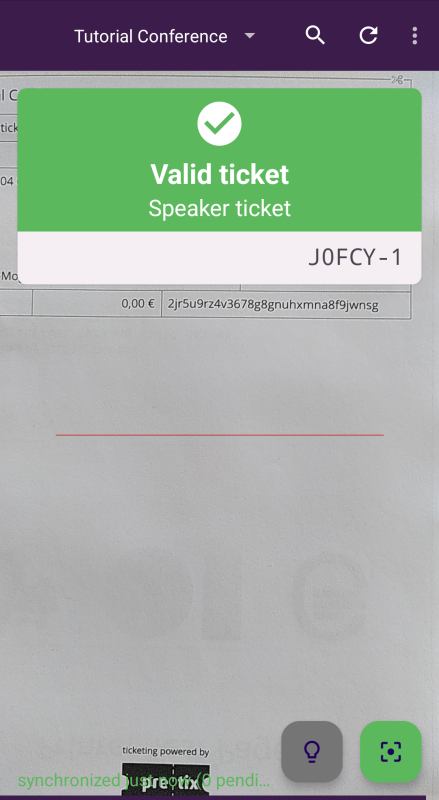
If none of these things happen, then your device has not scanned the code. Try adjusting the angle and distance between scan engine and ticket or improving ambient lighting. You can turn the device's flashlight and automatic focus on or off with the buttons at the bottom of the screen. If you have trouble scanning a code from a phone screen, ask the customer to increase screen brightness to maximum. You can also try tilting the scanning device by 90 degrees in any direction.
Searching for attendee data#
An alternative to scanning a ticket code is searching for an attendee in pretixSCAN. If an attendee arrives at the check-in without a ticket, but claiming that they have bought one, you can search for their data. Tap the button at the top of the screen. In the search field, enter the attendee's name, order code, ticket secret, or email address. Tap the matching result in the list.
The app will now check the validity of the ticket and return the same results as if it was scanning the ticket.
Enabling badge printing#
Badge printing only works if you have enabled the "Badges" plugin for the current event and the ticket you are scanning has a badge layout selected. In order to enable badge printing in pretixSCAN, you have to first install our additional app pretixPRINT on the same device and configure a connection to a printer.
Note
pretixPRINT comes preinstalled and configured on the scan smartphones that are available for rent on our website. Thus, you will normally not have to install and configure pretixPRINT on a scan smartphone that you rented from us.
Once you have done that, open pretixSCAN, tap the three-dot button in the top right corner, and then tap Settings. Scroll to the section titled "Badges" and check the box next to "Enable badge printing".
From now on, the box that pops up whenever you scan a ticket will also include a button. You can manually print a badge for the ticket holder by tapping the button. A push notification will pop up while the device is sending the print job.
If you want to automatically print a badge for every ticket you scan, open the settings page and scroll to the section titled "Badges".
Open the menu labeled "Print badges automatically" and select Always.
The app will still display the
button, allowing you to manually print an extra badge.
If you want to print out all badges twice after a scan, open the settings page. Scroll to the section titled "Badges" and check the box next to "Print every badge twice".
Switching to a different event or check-in list#
If you want to switch to a different event or to a different check-in list for entry scanning, tap the name of your event at the top of the screen. Select the event from the calendar or list and tap the OK button. Select the check-in list and tap the OK button again.
If you want to scan tickets for multiple events at the same time, you should enable expert mode. See Scanning tickets for multiple events for more information.
Advanced usage#
This section covers the following advanced use cases of pretixSCAN on Android:
- exit scanning
- locking the settings
- letting attendees scan their own tickets using kiosk mode
- offline scanning
- scanning tickets for multiple events
Exit scanning#
If you want to record ticket holders leaving your event, you can use pretixSCAN's exit mode. This is useful if you want to allow ticket holders to enter your event multiple times, but only if the same ticket is not currently checked in to the event. It is also useful if you want to add tickets whose holders have attended the event and then left back to the quota, thus allowing you to sell more tickets.
If you want to allow multiple entries per ticket, then your check-in list must allow re-entering after an exit scan. In order to enable that, open the pretix backend and navigate to navigation pathYour event then Check-in. Search for the check-in list and click the "change" button next to it. Switch to the Advanced tab. Check the box next to "Allow re-entering after an exit scan".
If your event has closing times, that is, times when no attendees are realistically present at the event anymore, then it makes sense to implement an automatic check-out.
In order to do so, enter a time in the field labeled "Automatically check out everyone at".
For instance, if you are operating a public swimming pool that closes at 10 PM and opens at 6 AM, you could enter 02:00:00 in that field.
This automatically checks out every ticket at 2 AM.
If you want to allow the sale of more products after an exit scan, navigate to navigation pathYour event then Tickets then Quotas. Edit the quota containing your product. Under "Advanced options", check the box next to "Allow to sell more tickets once people have checked out". Click the Save button. Repeat these steps for every quota containing a product for which you want to allow the sale of additional tickets after an exit scan.
In order to enable exit scanning mode in pretixSCAN, tap the button in the top right corner and then tap Switch to exit scanning. The home screen will now display a pictogram of a yellow box with an arrow pointing to the left . This confirms that the app is in exit scanning mode.
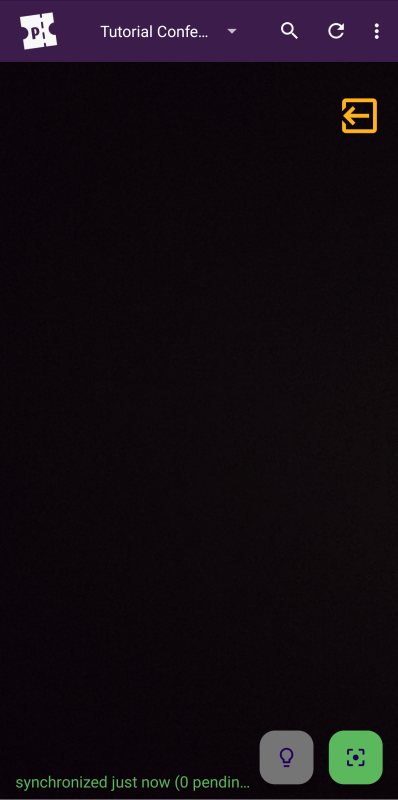
Scanning a valid ticket for the event in exit mode always results in a green box with the message "Exit recorded". This happens regardless of whether the ticket is checked in or not. Scanning the same ticket multiple times in exit mode always results in the "Exit recorded" message.
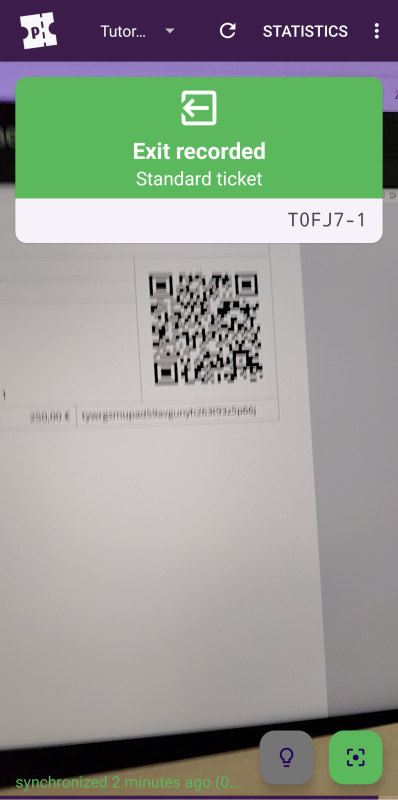
In order to leave exit scanning mode, tap the button in the top right corner and then tap Switch to entry scanning. The home screen will now display a pictogram of a gray box with an arrow pointing to the right in the top right corner. The app is now in entry scanning mode.
Locking the settings#
pretixSCAN offers you the option to lock settings behind a PIN. This can be useful if you want to prevent the people operating the check-in from changing any of the settings.
Open pretixSCAN, tap the button in the top right corner and then tap Settings. Scroll to the "User interface" subheading and tap PIN protection. Then, tap Set PIN, enter a PIN, and note the PIN down in a safe place or save it in a password manager. As soon as you check the box next to "Enable PIN protection", pretixSCAN will lock the settings behind the PIN.
This means that the next time you return to the home screen and attempt to open the settings, the app will require you to enter the PIN. You also have the option to protect other functions with the same PIN: statistics, switching between events, as well as switching between entrance and exit scanning mode.
Letting attendees scan their own tickets#
If you want to let your attendees scan their own tickets, you should use kiosk mode. Kiosk mode hides the top bar on pretixSCAN's main screen. This makes it impossible for users to access the settings, change the event, search for user data, or trigger a synchronization with the server.
pretix offers a security profile specifically for using pretixSCAN in kiosk mode. In order to enable that, open the pretix backend and navigate to navigation pathYour organizer then Devices.
Search for the device for which you want to enable the kiosk mode security profile in the list.
Click the
"edit" button next to it.
On the next page, under "Security profile", select pretixSCAN (kiosk mode, no order sync, no search).
Click the Save button.
Note
The kiosk mode security profile disables order search.
If you want the possibility to use the order search on this device, select the security profile pretixSCAN instead.
If you follow the rest of the instructions in this section, then order search will still be locked behind a PIN.
In order to enable kiosk mode on your device, lock the settings behind a PIN as described under Locking the settings. While you are in the "PIN protection" submenu, check the boxes next to "Kiosk mode" and "Disable search". Once you return to the main screen, pretixSCAN will not display the menu bar at the top anymore.

Use the app pinning feature of Android or your preferred solution to prevent users from leaving the app.
In order to leave kiosk mode and display the menu bar again, you need a QR code of your PIN Open our QR code generator and enter your PIN. Alternatively, you can use any QR code generator of your choice. Use pretixSCAN to scan the resulting QR code. The app will now display the top bar once again, allowing you to access the settings.
Offline scanning#
The default scanning behavior of pretixSCAN requires a reliable network connection. The app compares every code that it scans against the selected check-in list stored on the pretix server. If you are using pretixSCAN in an environment with an unreliable network connection or no connection at all, you may run into error messages while attempting to scan a code or search for attendee data. The solution for this problem is pretixSCAN's offline mode.
In offline mode, the app will verify data against its internal database instead of the database on the server. It will still occasionally attempt to synchronize its own internal data with the server. You can scan codes and search for attendee data without encountering errors despite the lack of a network connection.
Installing the app, connecting it to the backend and synchronizing data between the device and the server at least once still requires a working connection to the internet. Do these steps ahead of time in a setting where you do have a reliable connection if you are planning to use pretixSCAN in offline mode.
Warning
If you are using offline scanning with more than one device, then attendees can potentially use a single ticket for entry more than once. However, this is only possible for a limited period of time. The devices running pretixSCAN will regularly attempt synchronization. As soon as synchronization has been successful on all devices, pretixSCAN will correctly identify the ticket as "Ticket already used".
If you want to enable offline mode, open pretixSCAN, tap the three-dot button in the top right corner and then tap Settings. Then check the box next to "Offline scanning" and "Download orders". You should also check the box next to "Automatic Synchronization". With this option active, the app will attempt to synchronize event data whenever a connection is available. Thus, you will not have to initiate synchronization manually every couple of minutes.
If the network connection at your check-in is present, but unstable, you can leave "Offline scanning" unchecked and instead tap Automatically turn offline mode on and off.
The default selection is Manual mode (off).
This means that pretixSCAN will not enable or disable offline scanning automatically.
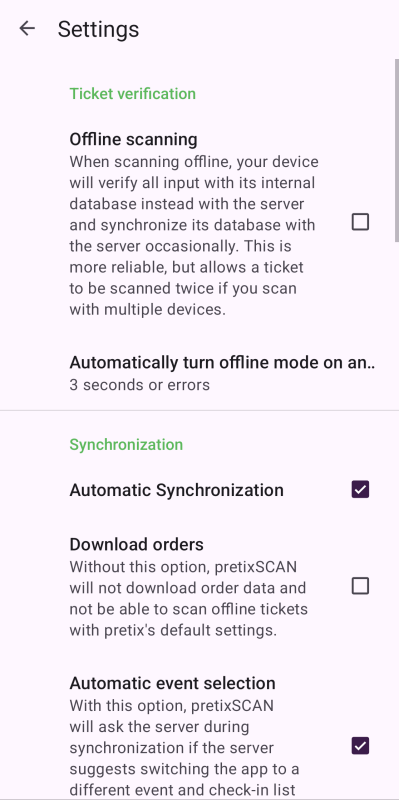
If you select, for instance, "3 seconds or errors", pretixSCAN will enable offline scanning if at least one of the following three conditions is met:
- pretixSCAN has been attempting to verify a code for three seconds without success
- pretixSCAN has encountered three errors while attempting to verify a code
- pretixSCAN has detected a loss of connection while attempting to verify a code
If you select "Only errors or connection loss", then pretixSCAN will enable offline scanning after encountering an error or detecting a loss of connection while attempting to verify a code.
Note
In offline mode, pretixSCAN will not recognize any tickets ordered while your shop is in test mode as valid. Also, tickets ordered in test mode will not appear in the search.
Scanning tickets for multiple events#
By default, pretixSCAN scans tickets for one event at a time. If you want to scan tickets for more than one event, you can use expert mode.
Note
If you want to scan tickets for multiple dates within the same event series, then you do not need to use expert mode. You only need to use expert mode if you want to scan tickets for multiple events or multiple event series at the same time.
This is useful if you are operating a single check-in for multiple events that are taking place at the same time.
If you want to scan tickets for multiple events or event series, then you need to give your device permission for all of them. If you have not already done so during your initial setup, open the pretix backend and navigate to navigation pathYour organizer then Devices.
Search for the device to which you want to give permission. Click the "edit" button next to it. On the next page, if you want to give the device permission for all events, check the box next to "All events (including newly created ones)". If you want to give permission for a limited selection of events, under "Limit to events", select the events for which you want to scan tickets. Click the Save button.
If you are doing a fresh setup of pretixSCAN, scan the QR code or enter the token as described under Connecting the device to the pretix backend. If you have already set up pretixSCAN for one event, tap the name of your event in the bar at the top. Both of these options take you to the event selection screen in pretixSCAN. The process is the same from here on out.
Select one of the events for which you want to scan tickets. Then, tap the OK button. Select your check-in list. Check the box next to "Expert mode (select multiple events)" and tap the OK button.
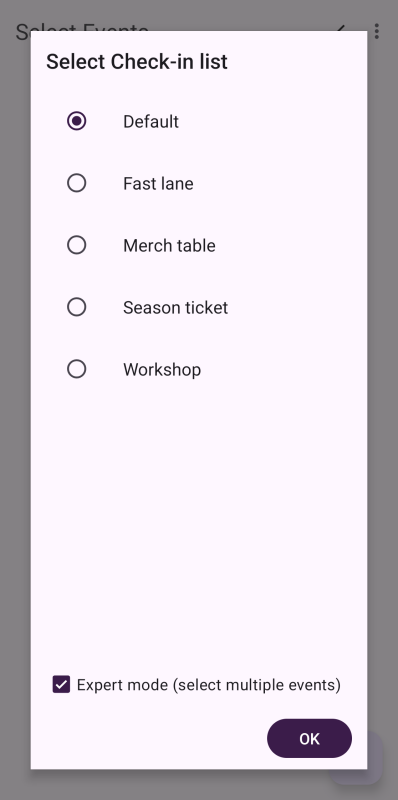
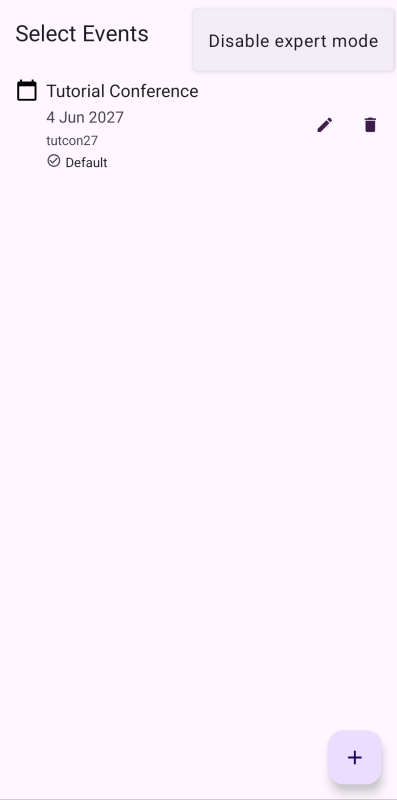
Tap the button. Select another event and check-in list for which you want to scan tickets. Repeat this step for every event for which you want to scan tickets. You can add as many events as you like, but you can only add one check-in list per event.
You can change the check-in list by tapping the button next to it. You can remove the event by tapping the button.
Once you are happy with your choices, tap the button at the top of the screen. This takes you back to the home screen of pretixSCAN.
If you want to disable expert mode, tap the name of your event at the top of the screen. Remove all events for which you do not want to scan tickets. Then, tap the three-dot menu and tap Disable expert mode.
Troubleshooting#
You do not have access to the PIN#
Problem: The pretixSCAN settings are locked behind a PIN or kiosk mode is enabled. You do not have access to the PIN, but you need to unlock the settings.
Solution: Reset app data. Open the settings on your Android device and delete the storage for the pretixSCAN app. This resets the app to a state as if freshly installed.
Alternatively, you can uninstall the app and install it again.
This also severs the connection to the pretix backend. Open the pretix backend and navigate to navigation pathYour organizer then Devices. Look for the device you disconnected in the list. Click the Revoke access button next to it.
Then, connect the device once again as described under Connecting the device to the pretix backend.
pretixSCAN scans every ticket twice#
Problem: A scan smartphone with pretixSCAN scans every ticket twice. Depending on the check-in settings, the app may falsely display the yellow box saying "Ticket already used"
Solution: Fix the scan smartphone's scan engine settings so that the app only receives one type of scan engine output.
If you are using a Sunmi device, close pretixSCAN and open the Settings app. Tap System (Languages, gestures, time, backup). Then, tap Scanner Setting. Open the App Settings tab.
Tap Output method setting. On the page titled "Output method setting", activate "No direct output" and "Broadcast". Tap the Save button in the top right corner. The Sunmi device should now scan each ticket once instead of twice.
If you are using a Zebra device, close pretixSCAN and open the DataWedge app.
Under "DataWedge-Profile", select pretix.
Under "Barcode input", check the box next to "Enabled".
Under "Keystroke output", uncheck the box next to "Enabled".
Under "Intent output", check the box next to "Enabled".
To summarize, "Barcode input" and "Intent output" should be active, whereas "Keystroke output" should be inactive. The Zebra device should now scan each ticket once instead of twice.
If you are using scan smartphones from another manufacturer, set the scan engine up in such a way that it only sends one type of output.
Scanning does not work for a new event#
Problem: Scanning tickets worked without issues for a previous event, but pretixSCAN falsely recognizes all tickets for the current event as invalid.
Solution: You need to grant the device authorization for the new event.
In order to do so, open the pretix backend and navigate to navigation pathYour organizer then Devices. Select your device in the list. Under "Limit to events", check the box next to the event for which you want to scan tickets. Alternatively, check the box next to "All events (including newly created ones)" above. If you do so, then you will not run into the same problem with future events.