Resources and scheduling#
If your event schedule depends on the availability of staff, spaces, equipment, or other resources, then you should use the "Resources and scheduling" plugin. This plugin allows you to manage those resources and schedule dates in your event series accordingly. This article tells you how to use it.
Prerequisites#
You need to have at least one event series with which you want to use resources and scheduling. The plugin offers no useful features for singular events.
How to#
Using resources and scheduling involves the following steps:
- Enabling the plugin on the organizer level and event series level
- Creating resource types such as a type for all guides or and one for all rooms
- Managing properties for resource types
- Creating individual resources, for instance, individual guides or rooms
- Creating a product for scheduling, for instance, a guided tour ticket
- Creating dates for scheduling, for instance, guided tours
- Assigning resources to dates, for instance, assigning a guide to a tour
- Alternatively, using the Quick entry feature for planning dates
The following sections will guide you through those steps in detail. In addition, this article explains how to confirm or deny a scheduling depending on the resource's availability at the scheduled time. This information is useful for the person or team managing the resource.
Enabling the plugin#
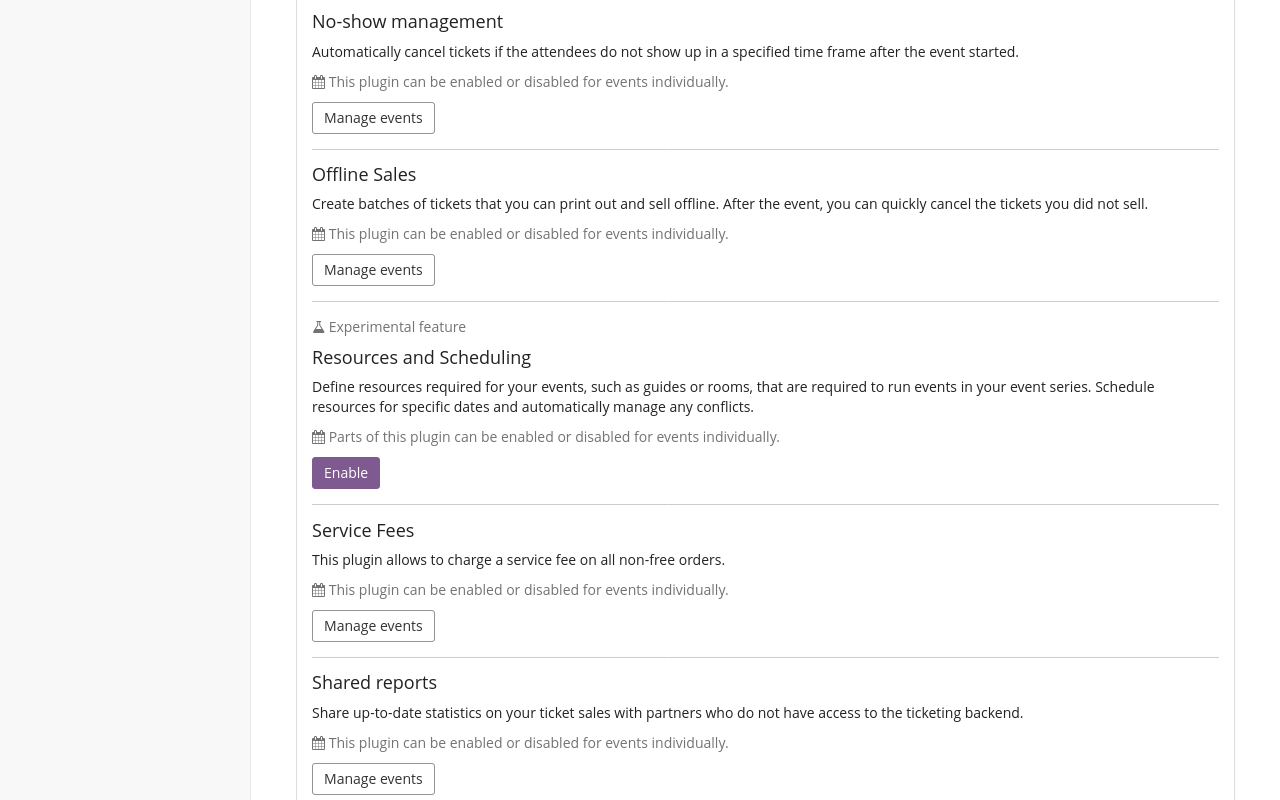
In order to enable the plugin for your organizer, navigate to navigation pathYour organizer then Settings then Plugins. Search the "Resources and Scheduling" plugin in the list and click the Enable button. If the "Resources and Scheduling" plugin is already active, then it will have a green " Active" tag next to it. In that case, click the Manage events button.
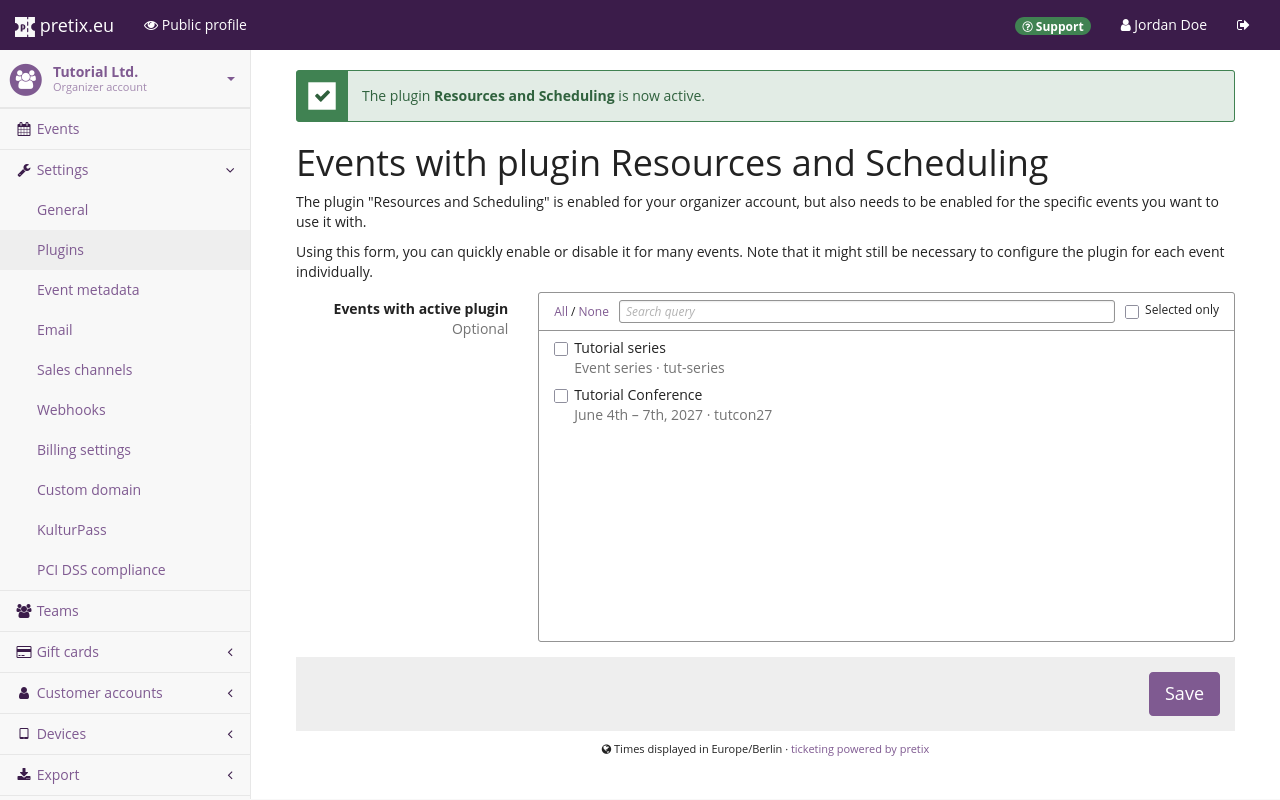
Both buttons take you to a page listing the organizer's events. Check every event series with which you want to use the plugin and click the Save button.
Alternatively, in order to enable the plugin for an individual event series, navigate to navigation pathYour event series then Settings then Plugins. Search the "Resources and Scheduling" plugin in the list and click the Enable button. If the plugin is already active, then it will have a green " Active" tag next to it.
Creating resource types#
Before you can create and manage individual resources, you have to create resource types. Assume, for instance, that you want to manage an individual resource such as a person named "Robin Doe". This person works as a guide for your museum. In that case, you create a resource type named "Guides".
This is a prerequisite for later creating the individual resource named "Robin Doe". The section Managing individual resources covers that later step.
If you want to manage staff such as guides, instructors, supervisors, etc., create a resource type for staff. If you want to manage facilities such as specialized rooms, sports courts, theater halls, etc., create a resource type for facilities. If you want to manage equipment such as audio guides, film screening equipment, pedal boats, etc., create a resource type for equipment.
Creating these types is a prerequisite for creating individual resources The section Managing individual resources covers that.
You can use pretix to manage any kind of resource and create a resource type for it. You should create exactly one resource type for every type of resource that you want to manage.
Note
We recommend creating as few resource types as possible. For instance, if you employ tour guides and workshop instructors, then you should create only one resource type named "Staff member". This allows you to manage staff who work both as tour guides and workshop instructors.
pretix only checks for conflicts of availability within the same resource type. Do not add the same real-world resource to two different resource types in pretix. Doing so would make it impossible for pretix to keep track of the resource's availability.
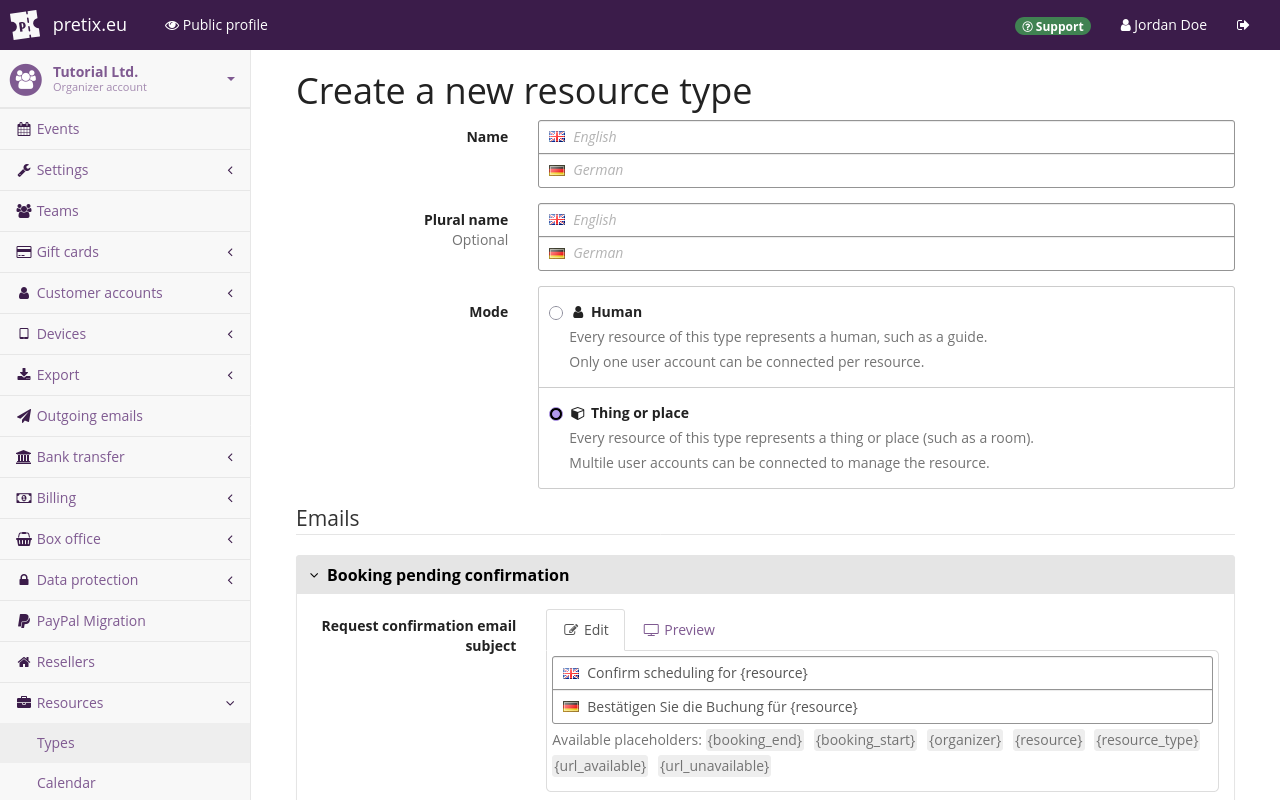
In order to create a new resource type, navigate to navigation pathYour organizer then Resources then Types. Enter a "Name" for the resource type.
If you do not enter a "Plural name", then pretix will append an s to the "Name" for the plural.
If the plural of your resource type's name is not formed by appending an s to the end, specify a "Plural name".
For instance, if the name of your resource type is Person, enter People in the "Plural name" field.
Select the "Mode" for your resource type.
In " Human" mode, you can specify exactly one pretix user account to manage that individual resource. You can also add a phone number and address to each individual resource. You cannot specify a separate notification email address.
In " Thing or place" mode, you can specify multiple pretix user accounts as managers for each individual resource. You can also specify a notification email address. You cannot add a phone number or address.
It is not possible to change the mode after you have created the resource type.
You can configure the text of emails for "Booking pending confirmation" and for "Booking confirmed" on this page. pretix will send these emails to the email address of the account that manages these resources. See managing individual resources for more information.
Whenever you assign a resource that requires confirmation to a date, pretix will send out the "Booking pending confirmation" email. If the recipient confirms the booking through the previous email, then pretix will send the "Booking confirmed" email. pretix will also send the "Booking confirmed" email if you assign a resource that does not require confirmation to a date.
Adjust the subject and message text of both emails to your liking.
You should always include the placeholders {url_available} and {url_unavailable} in the "Booking pending confirmation" email message.
The person managing the resource needs these links to confirm or decline a booking.
We also recommend using the other placeholders in your email message because they communicate relevant information.
The page lists available placeholders underneath the subject and email fields.
Click the Save button.
Managing properties#
Resources are usually not interchangeable. One or multiple properties that are relevant for booking may vary across resources. For instance, guides at a museum may speak different languages, be familiar with different exhibitions, or be proficient with different kinds of audiences. Conference rooms may not all meet space or seating requirement, or may come with different equipment. You can use pretix to keep track of these properties while scheduling dates.
In order to edit properties on a resource type, navigate to navigation pathYour organizer then Resources then Types. Click the edit button next to the resource type in the list. Under the headline "Properties", you can manage properties. Alternatively, you can add properties while creating a new resource type.
Assume, for example, you are creating a property type for museum guides. These museum guides differ as to which languages they speak, and which exhibitions they are familiar with.
In this case, you click the
Add property button.
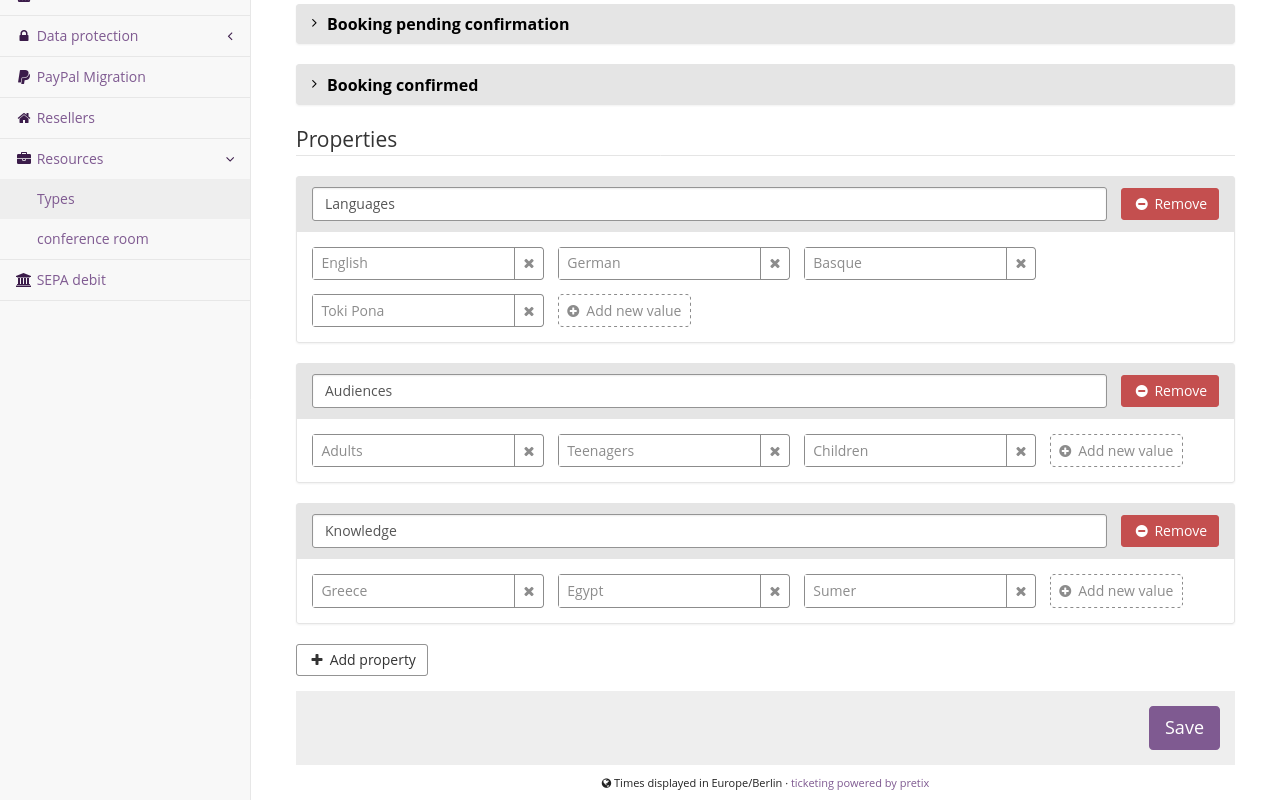
Under "Name", enter Languages.
Under "value", enter English.
Click the
Add new value button and enter German in the new field.
Click the same button again and enter Toki Pona in the new field.
Your resource type "Guide" now has the "Languages" property which can be English, German, or Toki Pona.
These property values are not mutually exclusive. A guide can speak any combination of these three languages.
Click the
Add property button.
Under "Name", enter Knowledge.
Under "value", enter Greece.
Click the
Add new value button and enter Egypt in the new field.
Click the same button again and enter Sumer in the new field.
Your resource type "Guide" now has the "Knowledge" property which can be Greece, Egypt, or Sumer.
Once you are happy with your choices, click the Save button.
In order to remove a property, click the Remove button next to it. This will display a box listing the resources that this change will affect. Removing the property will also remove that property from all affected resources, along with all defined values. If you are sure that you want to do this, confirm the removal by clicking Yes, remove this property.
Managing individual resources#
After you have created a resource type and added properties to it, you can create individual resources. An individual resource may, for example, represent the following:
- a person who works at your venue as a guide
- a room
- a piece of equipment
Every resource type you created in the previous step has added a new submenu under navigation pathYour organizer then Resources. Navigate to the submenu for the resource type you created in the previous step. For instance, if you created a resource type named "Guide", navigate to navigation pathYour organizer then Resources then Guide.
Click the Add a Guide button. If your resource has a different name, then the button will have a different label, too.
If the resource you are creating represents a person, enter their name under "Name". Under "Locale", select the language you want to use to communicate with the person through pretix. Check the box next to "Require confirmation".
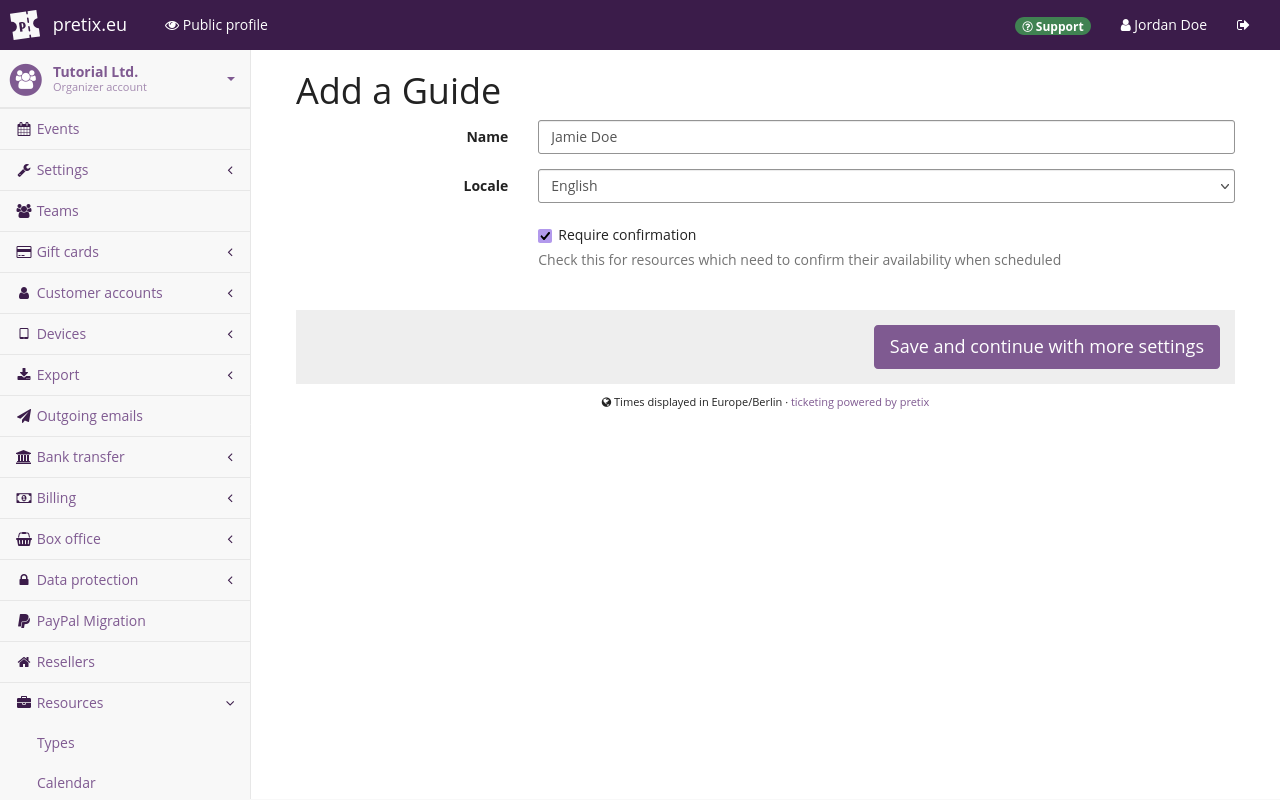
If the resource represents an inanimate object or location, enter a unique identifier such as a room number or an inventory number. Select the "Language" appropriate for the person or team in charge of the resource. Once you are happy with your choices, click the Save and continue with more settings button.
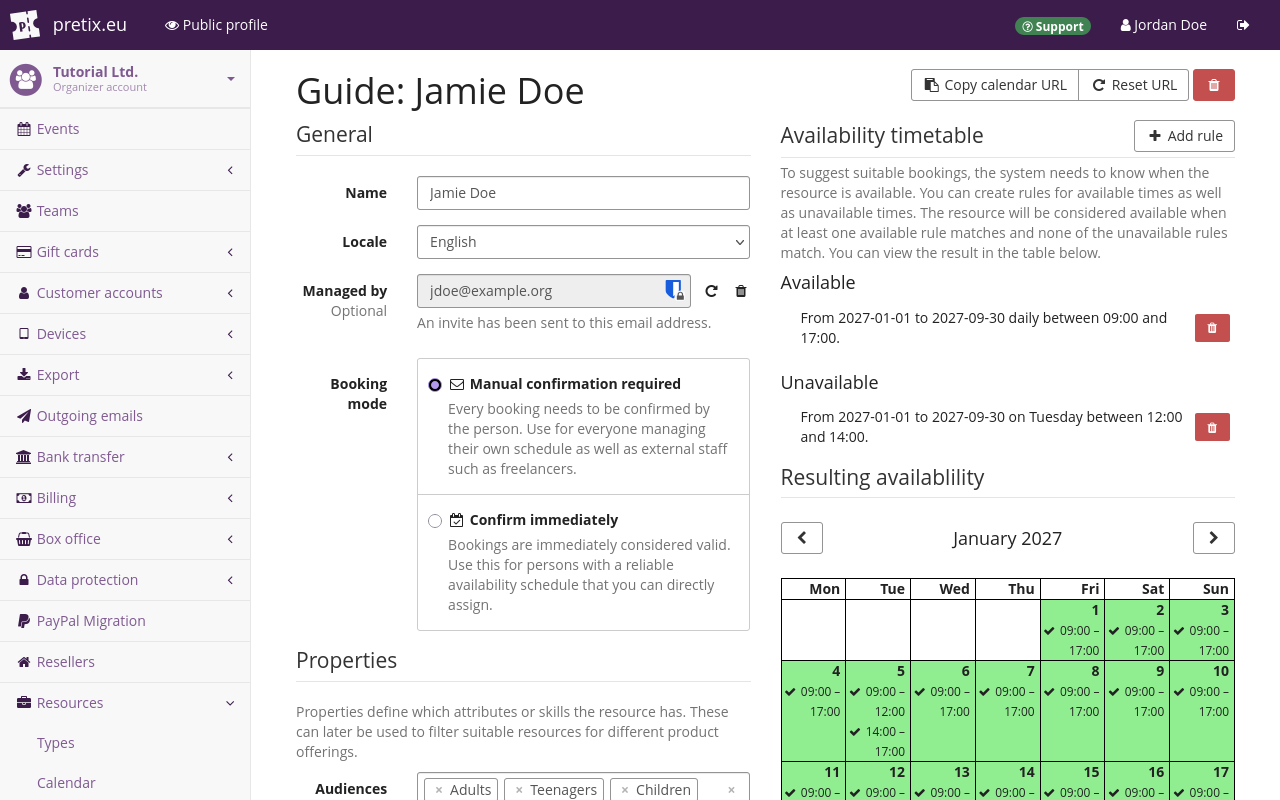
The process of adding managers to the resource is different depending on whether the resource is in "human" mode or in "thing or place" mode.
If you are creating a human resource, then the page has a field labeled "Managed by". Enter the email address of the associated pretix user account in that field.
If the email address you enter is not associated with a pretix user account yet, then pretix will send an invitation email to them. This is similar to the way pretix sends out an invitation if you invite someone to your team.
If the resource is a thing or place, then the page will have a Managers button at the top. Click that button. This takes you to a page listing all managers for the resource. Enter the email address of the pretix user account that belongs to one of the people managing the resource. Click the Add button.
Repeat this step for every person who manages the resource. Take a step back in your browser or navigate to navigation pathYour organizer then Resources. Click your resource type and then your resource.
Under "Properties", assign properties to the resource.
For instance, if you are adding a guide and they speak English and Toki Pona, click the "Languages" field and select English and Toki Pona.
Once you are happy with your configuration of the resource, click the Save button. The Save button does not affect the availability settings in the right half of the page. The next section explains how to use them.
Setting availability for a resource#
Under "Availability timetable", define when the resource is available. Click the Add rule button. This opens a popup window titled "Add a new availability rule".
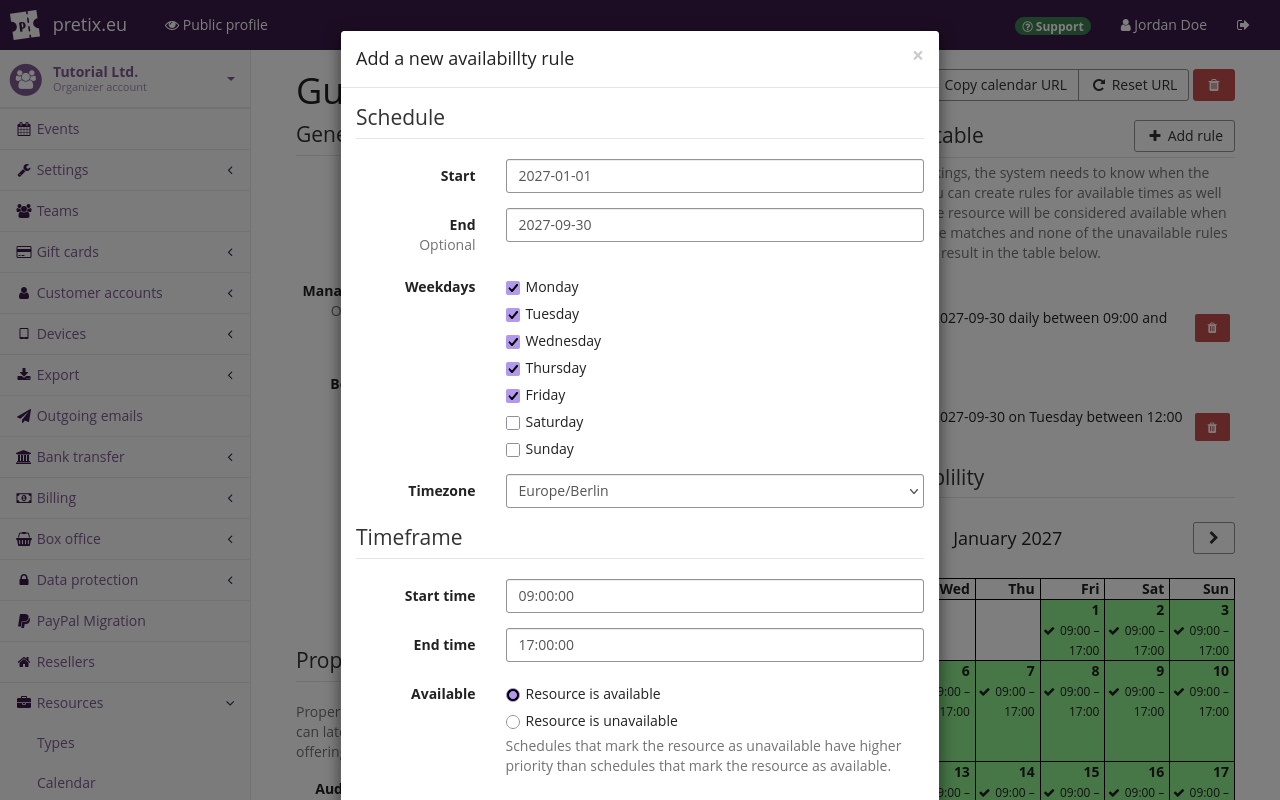
Assume, for instance, your guide's availability is expected to stay the same July through September 2027. They will work Monday through Friday from 9 AM to 5 PM. They will not be available on Tuesday from 12 AM to 2 PM because of a weekly team meeting.
In that case, you enter a "Start" date of 2027-07-01 and an "End" of 2027-09-30.
Select all days from Monday through Friday.
Select a "Start time" of 09:00:00 and an end time of 17:00:00.
Click the Save button in the popup.
Click the
Add rule button again.
Enter the same "Start" and "End" times as above.
Check "Tuesday".
Enter a "Start time" of 12:00:00 and an "End time" of 14:00:00.
Under "Available", select "Resource is unavailable".
Click the Save button in the popup.
The calendar view under "Resulting availability" will now display the available times for this resource.
Deleting and reactivating resources#
If you want to delete a resource, navigate to the submenu for the corresponding resource type. Click the button next to the resource you want to delete. Alternatively, click the name of the resource and then click the button in the top right corner. Both buttons take you to a page asking you to confirm the deletion.
If you never scheduled the resource for any events, then pretix will delete the resource completely.
If you did schedule the resource for events, then pretix will keep a record of the resource.
You can view that record by navigating to the submenu for the corresponding resource type.
Under "Resource status", select Deleted resources or All resources and click the
Filter button.
The page displays deleted resources with their names crossed out.
If you want to reactivate the resource, click its name. On the page for the individual resource, click the Undelete button. Confirm by clicking the Reactivate button. You are now able to schedule the resource for dates again.
Creating a product for scheduling#
Navigate to navigation pathYour event series then Products and create or edit a product. For general information on creating products, see our guide on products. Do not add the product to any quotas. Open the Requirements tab.
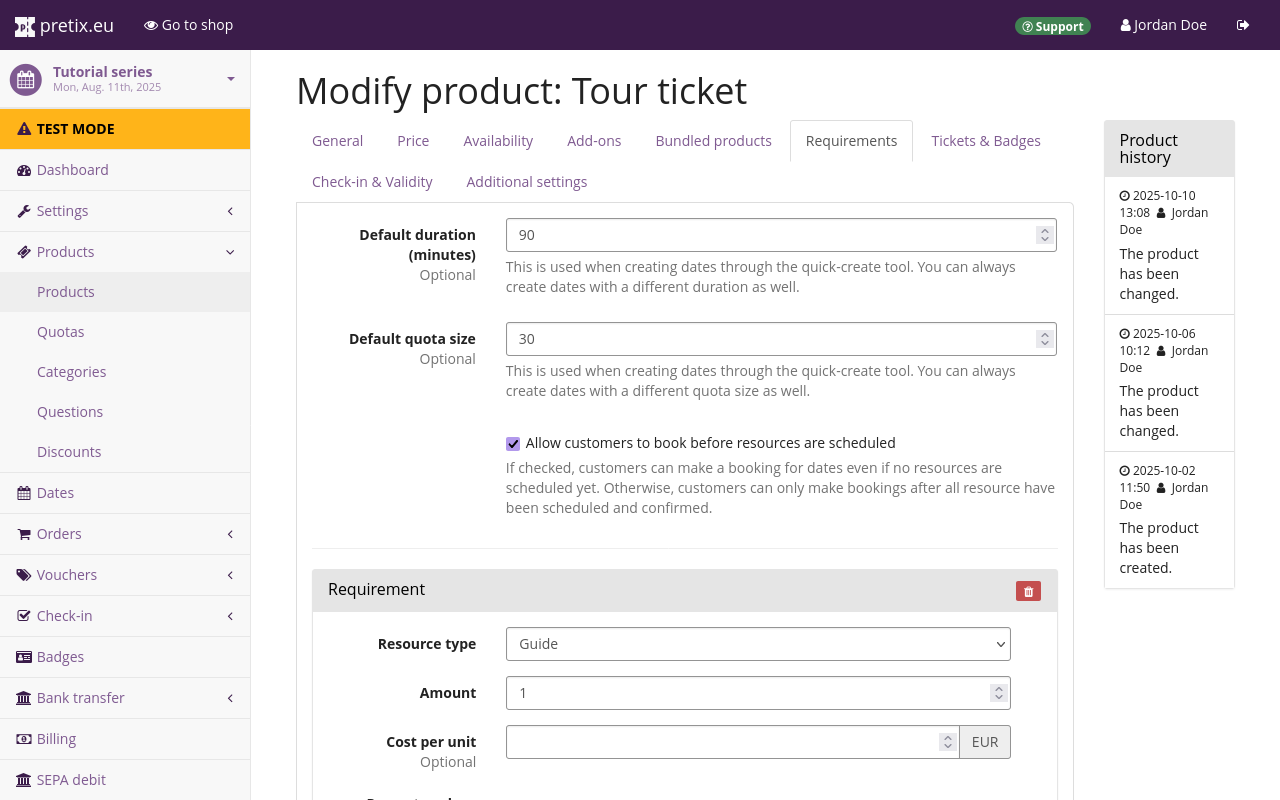
In the "Default duration (minutes)" field, enter the time for which resources will typically be booked.
For instance, if a tour usually takes 90 minutes, enter 90.
This field is optional, but if you want to use the Quick entry feature, then you need to enter a number here.
In the "Default quota size" field, enter the maximum number of people that can use the resource at the same time.
For instance, if a tour guide can accommodate no more than 30 people at a time, enter 30.
If you want to assign resources to dates based on customer demand, you should check the box next to "Allow customers to book before resources are scheduled". If you check this box, your shop will display all dates to which this product grants access, even if you have not scheduled any resources for them.
Note
Activating the setting "Allow customers to book before resources are scheduled" may cause situations in which you have sold tickets for a date, but no resources available for that date. Thus, this use case requires you to monitor bookings closely.
If you want to assign resources to dates before selling any tickets for those dates, then you should leave it unchecked. This way, you need to assign all required resources for a date first. The date will only become available for booking in your shop after you have done so.
Click the
Add a new requirement button.
Select the "Resource type" that is necessary for this date.
Under "Amount", specify the amount of resources of this type that are necessary, usually 1.
If you need more staff, rooms, or pieces of equipment, enter the number you need.
You can use the "Cost per unit" field to specify an expected cost per individual resource. For instance, the value in this field might represent the fee paid to the guide for each completed tour. pretix uses this field for data exports. It does not affect the price of the product.
Under "Property values", check all values that are required for this type of date.
For instance, assume you are offering a tour of the Ancient Egypt exhibition for English-speaking children.
In this case, you select the "Resource type" Guide and the "Property values" Children, Egypt, and English.
Click the Save button.
Creating dates for scheduling#
Note
Creating dates for scheduling makes sense if you are hosting recurring dates that are open to the public. If you are instead making appointments with groups or individuals, then using the Quick entry feature may be more convenient.
Navigate to navigation pathYour event series then Dates and click the Create many new dates button. Set up the dates according to your preferences. For general information on creating dates, see Creating and editing dates in the event series.
Under the heading "Quotas", in the field labeled "Products", select the product you created in the previous step.
We recommend selecting only one product with resource requirements. pretix applies resource requirements once for every product that has them. If your date has two products that both require a guide, then your date will require two guides for scheduling. If you want to offer multiple tours at the same time, create one date for each of them.
If you want to sell tickets for each individual attending a tour, then you should add a tour product with requirements and any number of regular tickets that do not have requirements. We recommend configuring tickets for the tour as add-on products to the tour product.
Assigning resources to dates#
In order to get an overview over the scheduling for your event series, navigate to navigation pathYour event then Scheduling then Dashboard.
In order to assign required resources to dates, click Dates with not all resources scheduled. This takes you to a page titled "Dates missing resources" which lists all dates with unfulfilled resource requirements. It should list all dates you created in the previous step.
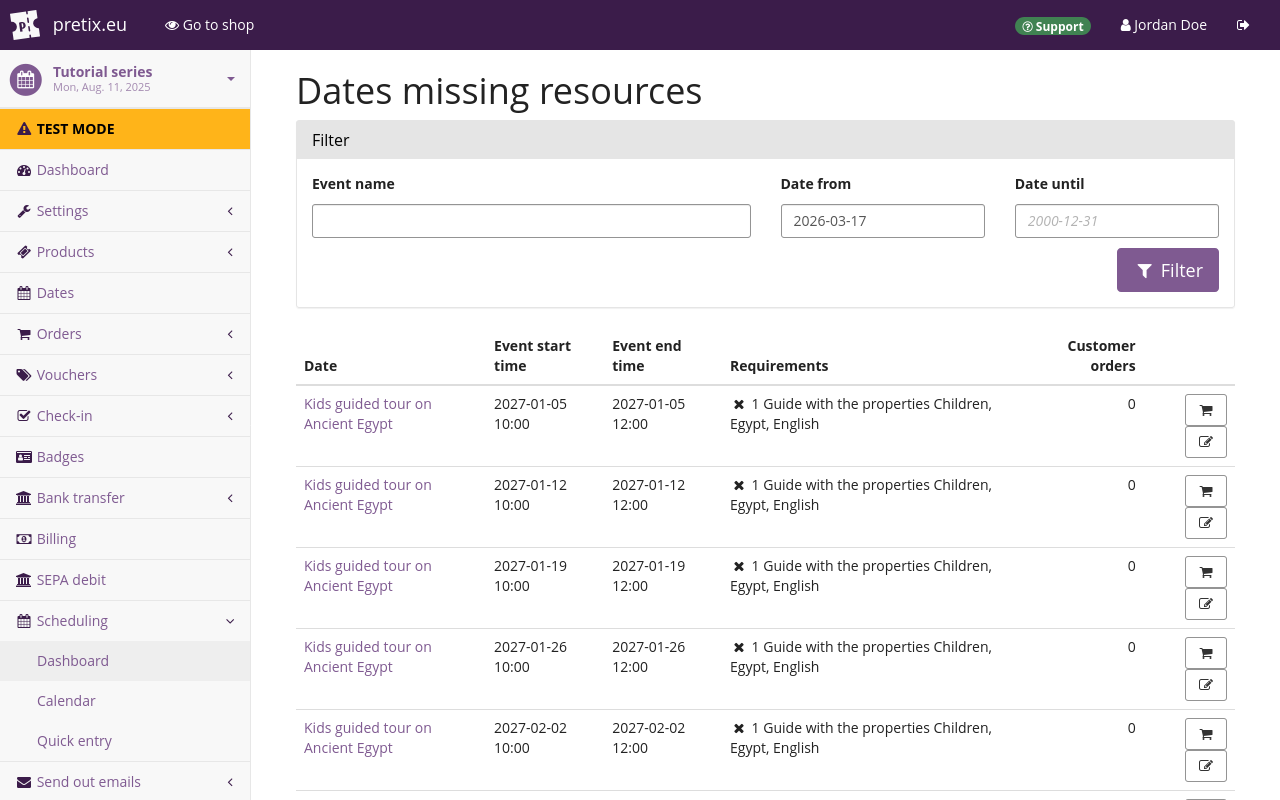
Click one of the dates. Under "Additional settings", you can find the "Schedule" settings. There is a field for every resource type that is required by one of the products assigned to this date. The text below that field lists the required properties of the resource. Click the field and select the individual resource you want to assign.
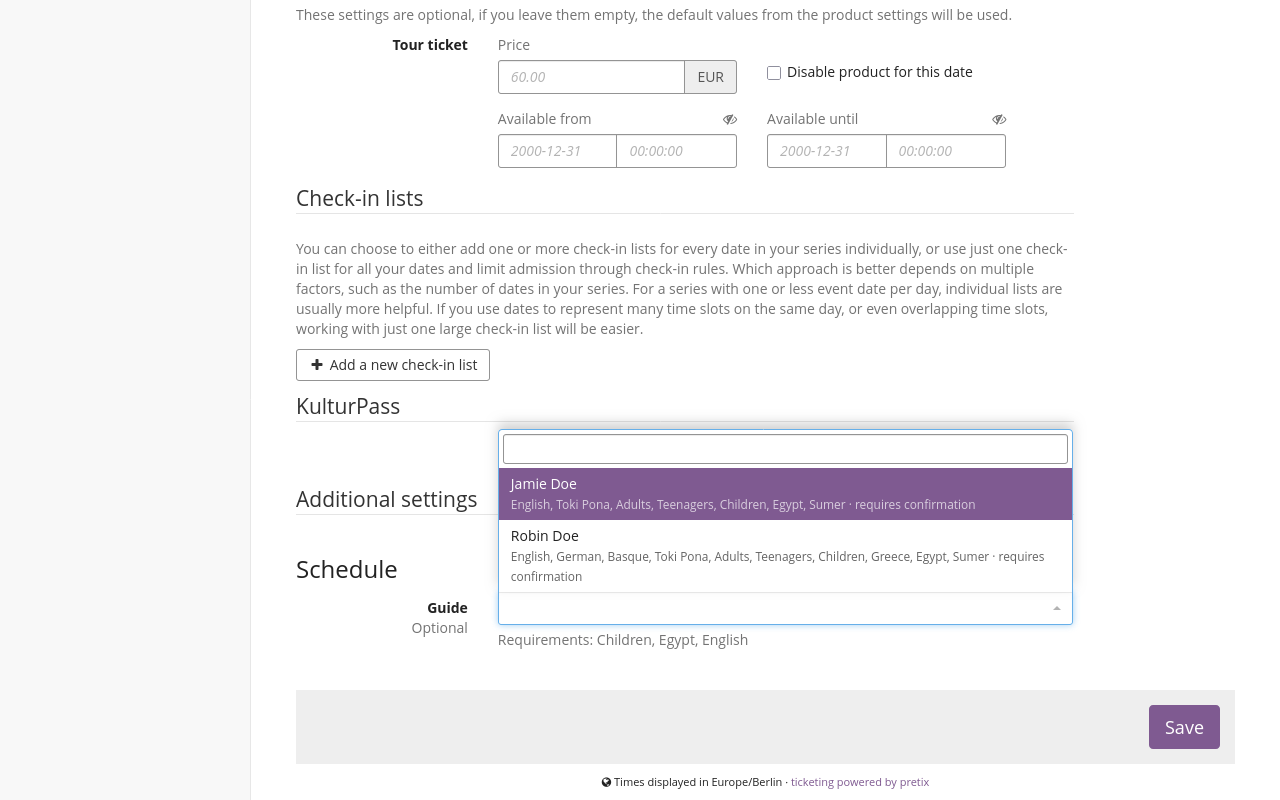
Assume, for instance, your date requires a resource of the type "Guide". The required properties are "Children", "Egypt", and "English". Click the field.
A drop-down menu opens, listing all resources of the type "Guide".
The menu helps you select an appropriate resource by displaying tags next to each entry:
conflicting booking, availability unknown, unavailable, or does not match requirements.
If an entry does not have any of those issues, then it will have none of those tags.
Select an entry with no issue tags next to it.
Click the Save button. As soon as you do this, your event's contact mail address will send an email to the resource's managers.
Quick entry#
The "Quick entry" feature allows you to find out when required resources for a product are available on a given date. This is useful if you are making an appointment with a group of customers, for instance when scheduling a tour. It is also useful if you want to create dates based on when the required resources are available.
Note
The quick entry feature is useful if you are making appointments with groups or individuals. It is also useful if you want to create scheduled tours one by one. If you are hosting recurring dates that are open to your entire customer base, then Creating dates for scheduling and Assigning resources to dates may be more convenient.
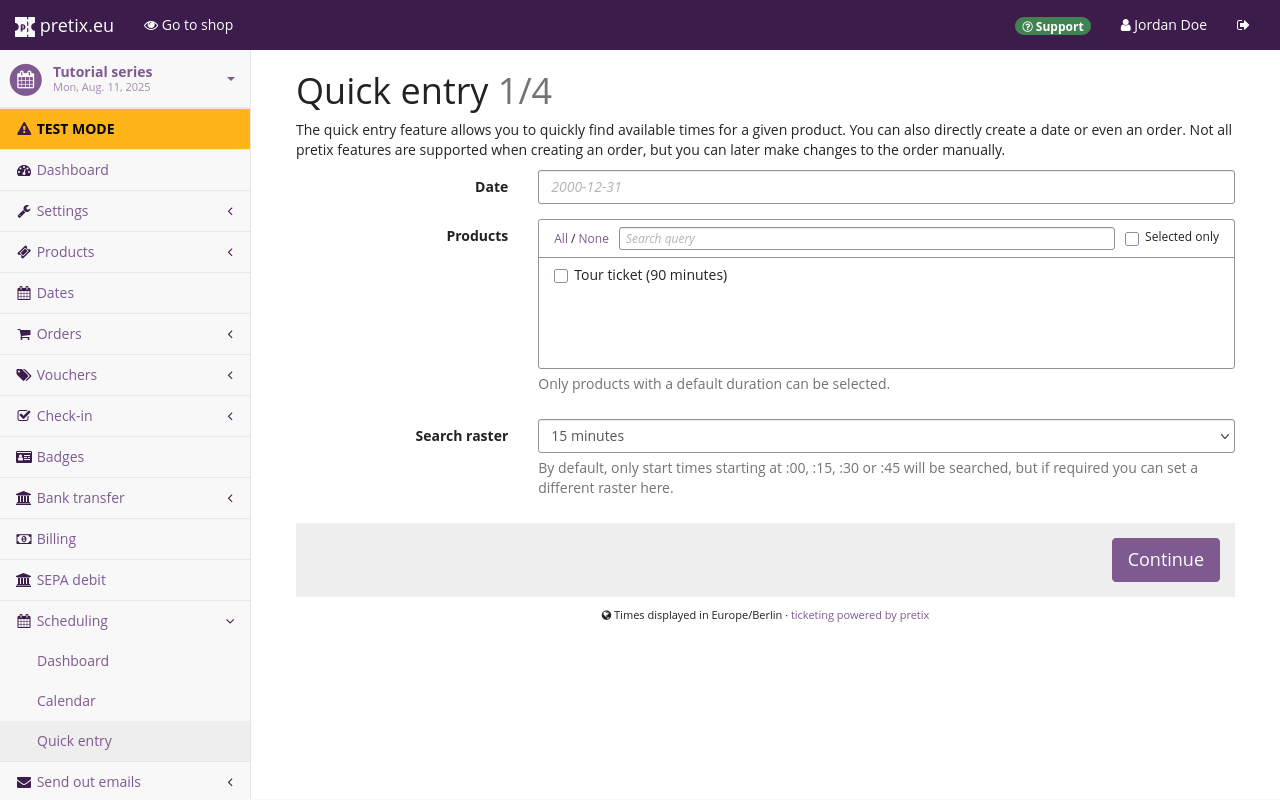
Navigate to navigation pathYour event then Scheduling then Quick entry. Under "Date", enter the date on which you want to search availabilities. Under "Products", select "All" or at least one product.
This field only displays products with a "Default duration" as defined in the product settings, on the "Resource requirements" tab. See Creating a product for scheduling for information on how to add resource requirements for a product. Click the Continue button.
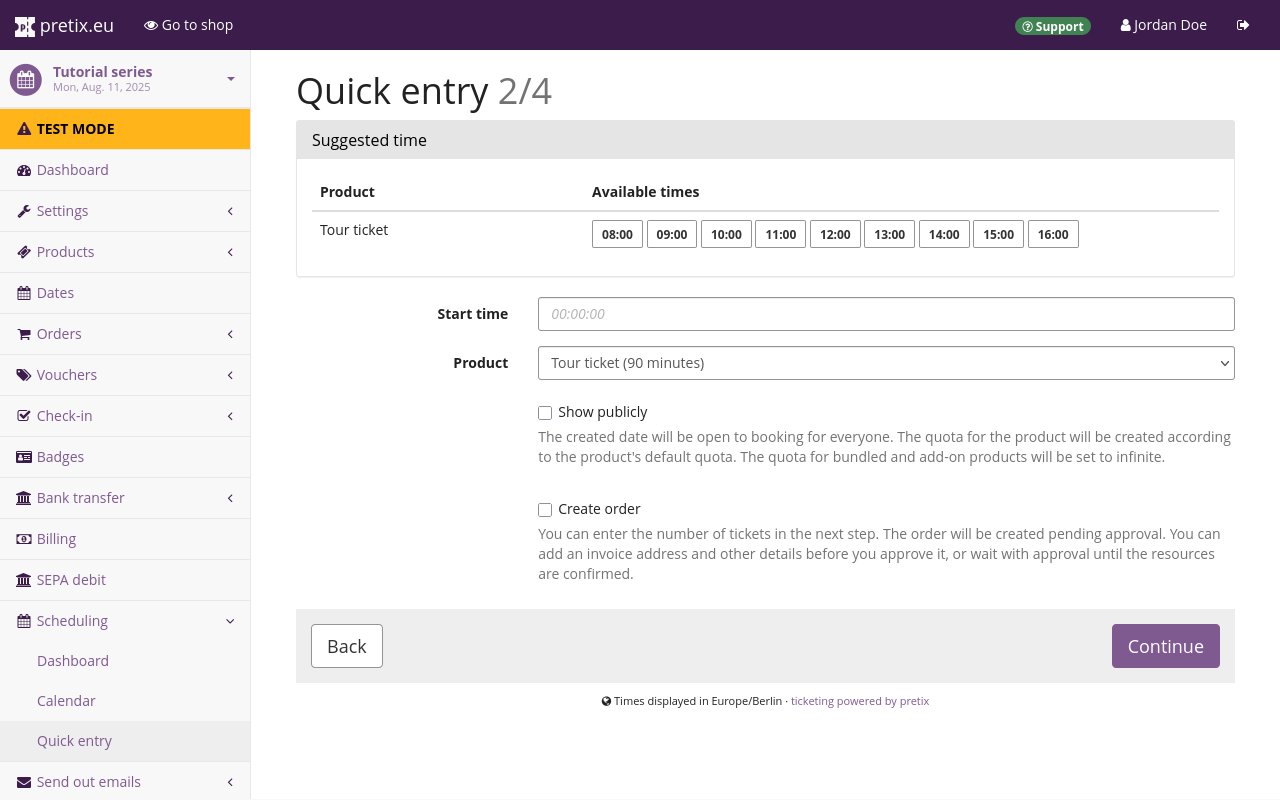
Choose a starting time for your date by selecting it under "Available times" or entering it under "Start time". pretix will only suggest times for which it has stored information that sufficient resources are available. You can still enter any other time manually, even if pretix has no record of available resources at that time. If you selected multiple products on the previous page, use the "Product" drop-down menu to choose a specific product. If you selected only a single product, then pretix will carry that selection over to the drop-down menu.
If check the box next to "Show publicly", then the setting "Show in lists" for this date will be activated and your shop's calendar and list views will display this date to costumers. Uncheck this box if you do not want the date to be visible to all visitors of your online shop.
If you want to create an order for the date right away, check the box next to "Create order". Click the Continue button.
If you checked the box next to "Create order", then the next page allows you to enter details for that order. This is a simplified form. If you want to add further details to the order that pretix does not display on this page (such as invoice information), use the "Orders" menu. If you unchecked the box next to "Create order", then pretix will skip this page.
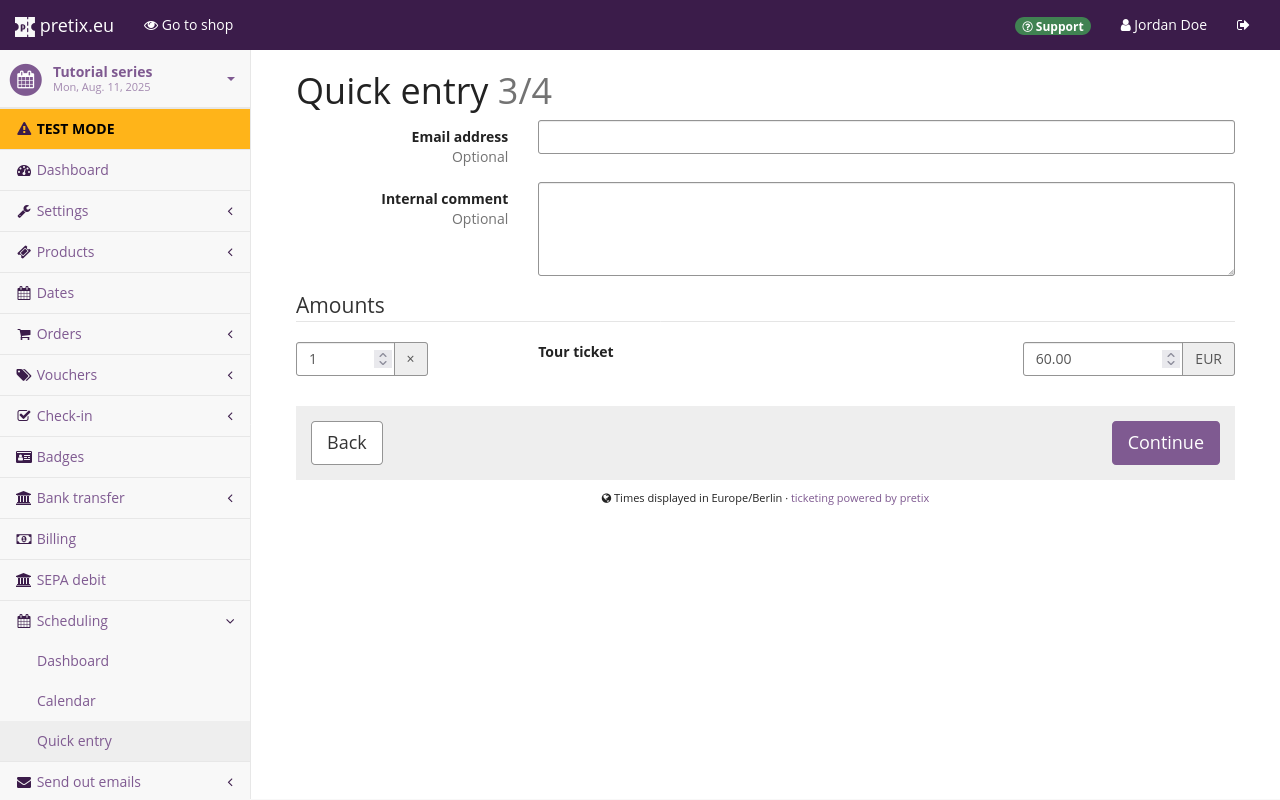
Enter the "Amounts" of products to sell through that order and a price for each of the products. You may also enter an "Email address" to be associated with the order. Then, click the Continue button.
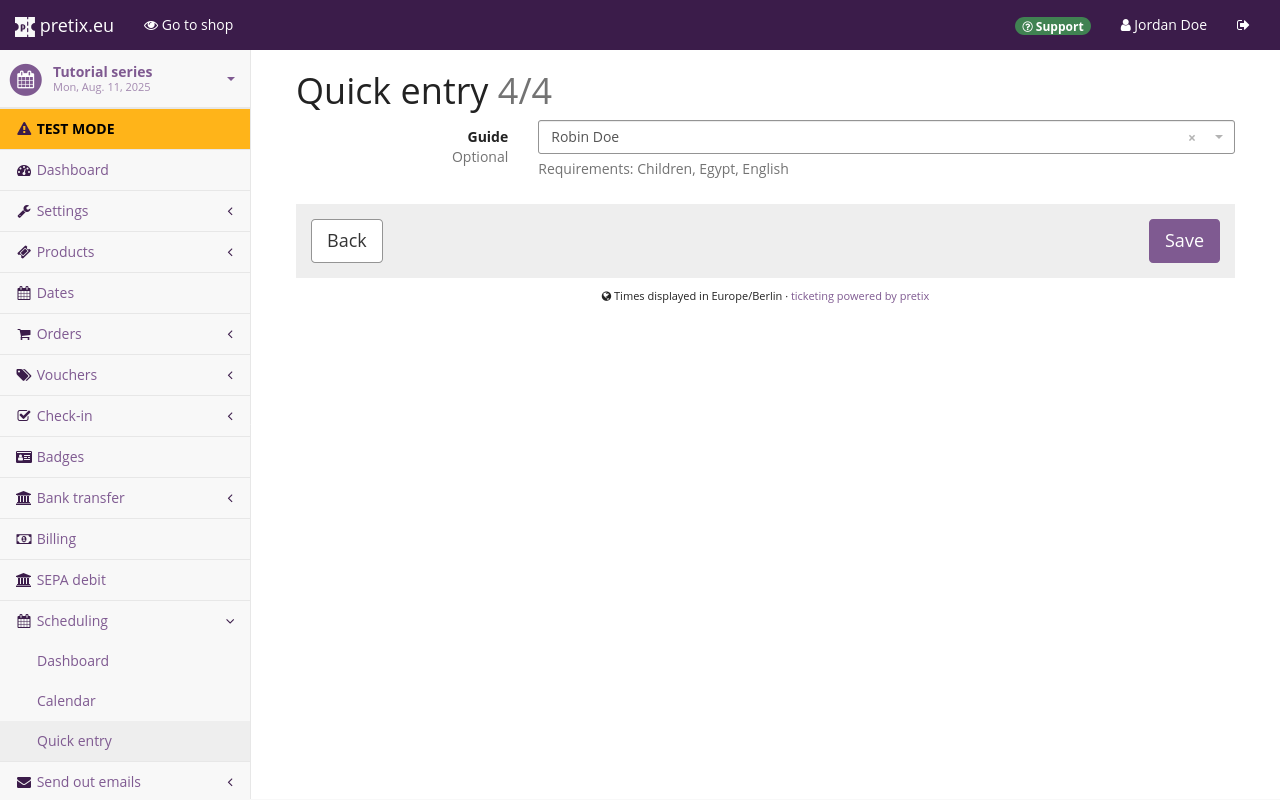
On the last step of the quick entry, select the resources necessary for the date.
The required properties are listed below the field.
Click it.
This opens a drop-down menu, listing all resources of the type "Guide".
The menu helps you select an appropriate resource by displaying tags next to each entry:
conflicting booking, availability unknown, unavailable, or does not match requirements.
If an entry does not have any of those issues, then it will have none of those tags.
Select an entry with no issue tags next to it.
Then, click the Save button. If you created an order, then you will land on the page for that order. If you did not create an order, then you will land on the scheduling dashboard.
Confirming or denying a scheduling#
Whenever a user assigns a resource to a date in pretix, the server sends an email to that resource's managers. This email also includes a calendar invitation.
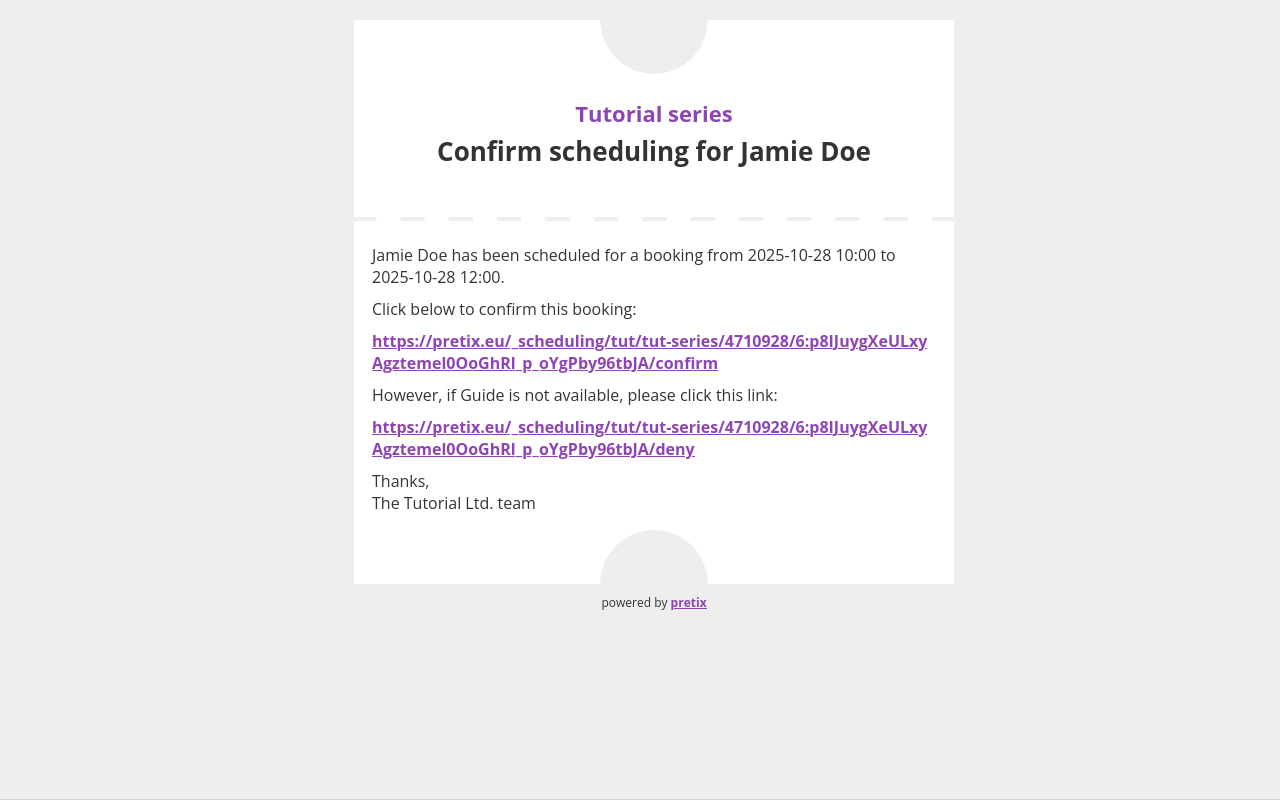
In order to confirm scheduling, click the link that ends with confirm.
This takes you to a webpage saying "Thank you for your response, the event organizer has been notified".
The pretix server will also send an email to the resource's managers confirming the scheduling.
Both the scheduling dashboard and the page for the individual date will display a note saying that the requirement for the date has been fulfilled.
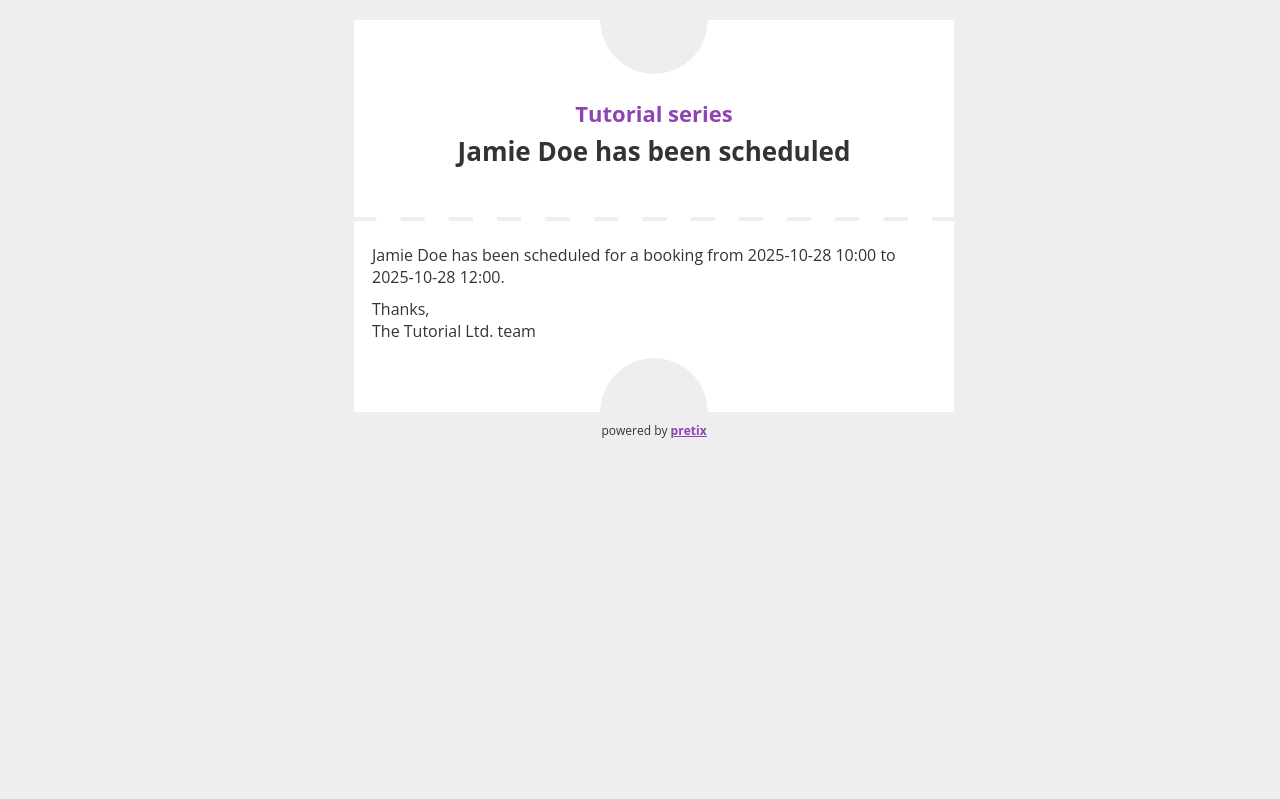
In order to decline the scheduling, click the link that ends with deny.
This also takes you to a webpage saying "Thank you for your response, the event organizer has been notified".
The pretix server will not send a confirmation email.
The requirement for the date will remain open.
Troubleshooting#
Some dates do not appear in your shop#
Problem: You are using the "Resources and scheduling" plugin and your shop does not display all of your dates.
Solution: You either need to schedule resources for those dates, or you need to allow customers to book before you have scheduled any resources.
For the first option, see Assigning resources to dates
For the second option, navigate to navigation pathYour event series then Products. Edit the product that grants access to the dates that the shop is not displaying. Open the Requirements tab. Check the box next to "Allow customers to book before resources are scheduled". If you check this box, your shop will display all dates to which this product grants access, even if you have not scheduled any resources for them.
Click the Save button. For every product that grants access to a date that is not appearing in the calendar, repeat these steps.