Übersetzungshinweis
Leider war es uns noch nicht möglich, diese Seite für Sie auf Deutsch zu übersetzen. Wir zeigen daher stattdessen die englischsprachige Version der Seite und bitten um Verständnis.
Dates#
An event series contains dates. Dates are all part of an overarching event series, but each date can have its own start and end time, name, description, products (and thus prices), and so on. This article explains how to add dates to an event series.
We will navigate to our personal dashboard by clicking pretix.eu in the top left corner of the website. We will then select our event series in the list of "Your upcoming events" and click Dates in the sidebar.
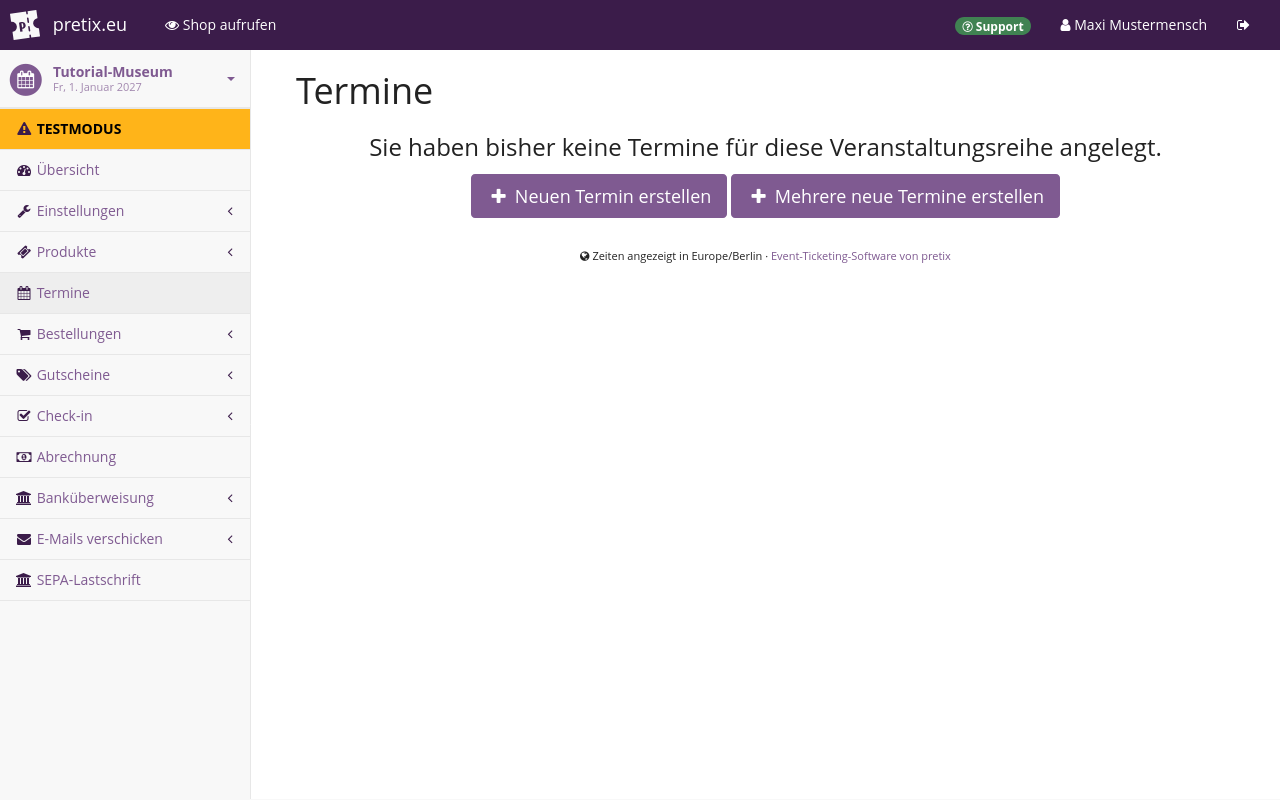
There are no dates in our event series yet. Thus, this page displays the text "You haven't created any dates for this event series yet". It also displays two buttons: one for creating a single new date, and one for creating many new dates.
Creating a date for regular opening hours#
First, we are going to create a date that represents our regular opening hours for the 2027 season. In order to do so, we will click the Create a new date button.
In the "Name" field, we will enter Regular admission.
Under "Event start time", we will enter 2027-01-01, 08:00:00.
Under "Event end time", we will enter 2027-12-31, 18:00:00.
In the first field under "Quotas", we will enter "Regular admission". We will leave the "Total capacity" field empty because we do not need to limit the sale of tickets that attendees will use throughout our entire season.
Under "Products", we will select the two products we want to grant admission during our regular opening hours. Those tickets are "Regular admission" and "Discount admission". We will then click the Save button.
Hinweis
If all dates in an event series have the same name, then the shop's calendar view will not display that name. Thus, the setup described in this section results in a calendar view full of nondescript date entries. Once there is at least one date with a different name, the calendar view will display all date names again. Follow along with the next section and the issue will resolve itself.
Creating dates for special events#
Next, we want to offer recurring guided tours for our museum. Our guided tour takes place every Monday and Wednesday at 10 AM in the first half of 2027. For that, we are going to create multiple new dates for this event series. We will click the Create many new dates button.
In the box titled "Repetition rule", we will choose the following:
"Repeat every 1 week(s), starting at 2027-01-01."
We will then check the boxes next to "Monday" and "Wednesday".
We will select the radio button next to "Repeat until" and choose the date 2027-06-30.
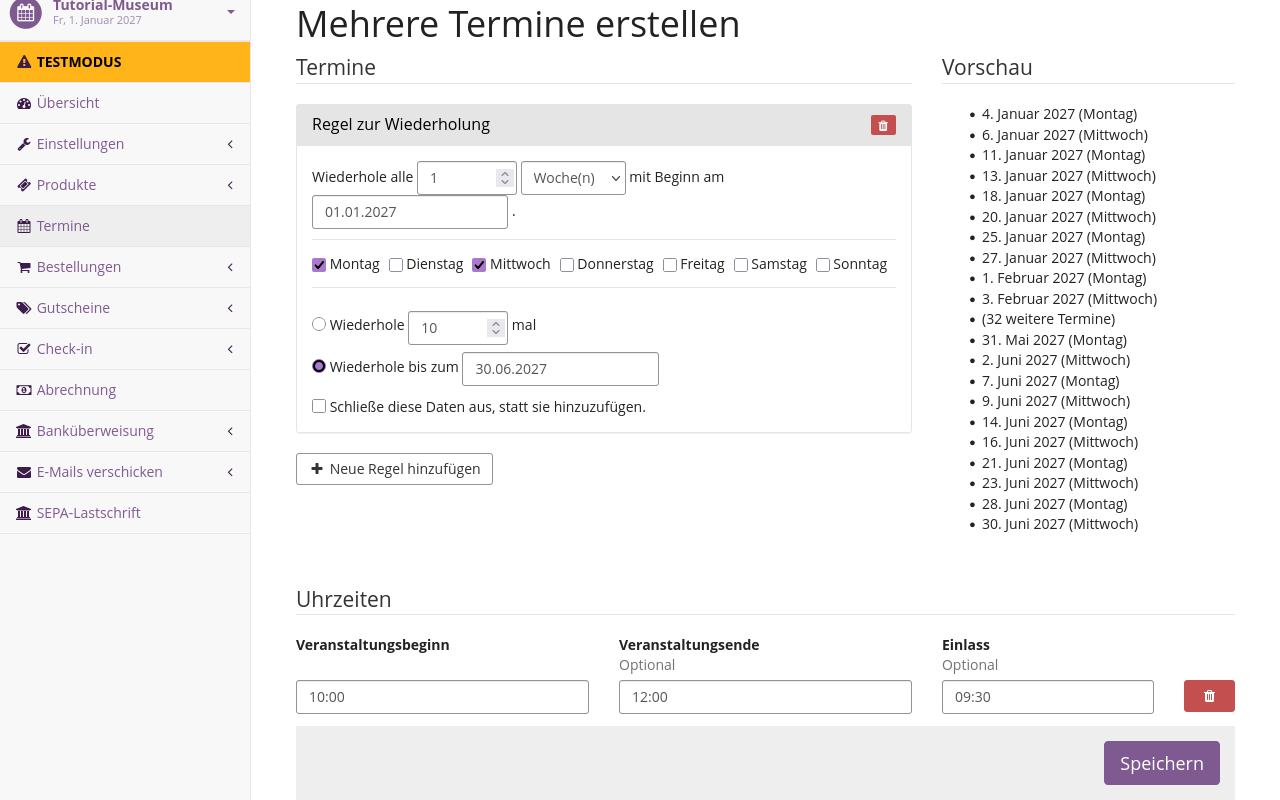
The "Preview" on the right side of the page is useful for checking whether our repetition rule results targets the right dates. It will display the first ten and last ten dates we are about to create.
Under "Times", we will click the
Add a single time slot button.
We will choose the start time 10:00:00, the end time 12:00:00 and the admission time 09:30:00.
Under "General information", we will enter Guided tour as the name for these dates.
We are also going to add a description under "Frontpage text".
Under "Quotas", we are going to enter "Tour tickets".
We will enter a total capacity of "30".
Under "Products", we will select the products Guided tour and `Guided tour (discount)
Finally, we will click the Save button, which takes us back to the dates overview page.
Conclusion#
We have added dates to our event series: a single date for regular admission and many dates for a repeating special event. We can add further dates as needed during the season. For repeating dates, it makes sense to use the "Create many new dates" function. For one-off dates, we can use "Create a new date" instead.
We can now move on to setting up payment methods that our customers can use to purchase these tickets for these dates.